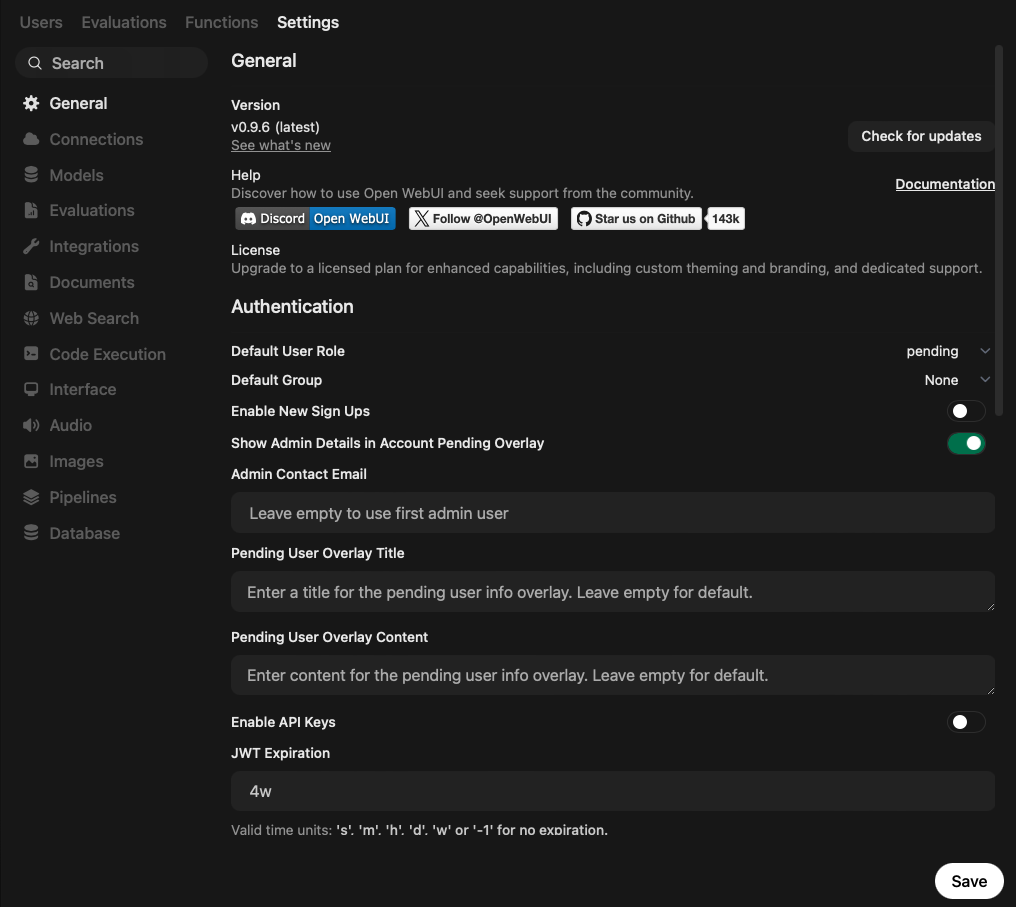
Open WebUI is a universal chat interface with connectivity to local or remote LLM providers, custom files, documents, and a knowledge base, with full customization of model capabilities. Application features are configured both personally for a user account and globally by admin users.
This article continues the exploration of Open WebUI configuration and utilization. Following the extensive coverage of user features and settings, this article provides complete coverage of admin settings. Learn how to provide defaults for base models and connections, web search, and connections to a terminal code execution environment and built-in databases.
The technical context of this article is Open WebUI v0.9.6, published on 2026-06-01. The setup and configuration examples should also work with newer versions.
While I am fascinated by the capabilities of artificial intelligence tools and applications, crafting blog articles remains my personal skill. Every character, number, and symbol in this article was typed manually, with the exception of verbatim copies from log messages and screenshots.
Admin Configuration Entrypoint
The admin user account has access to an additional settings dialog. It can be accessed by clicking the user icon and selecting Admin Panel.
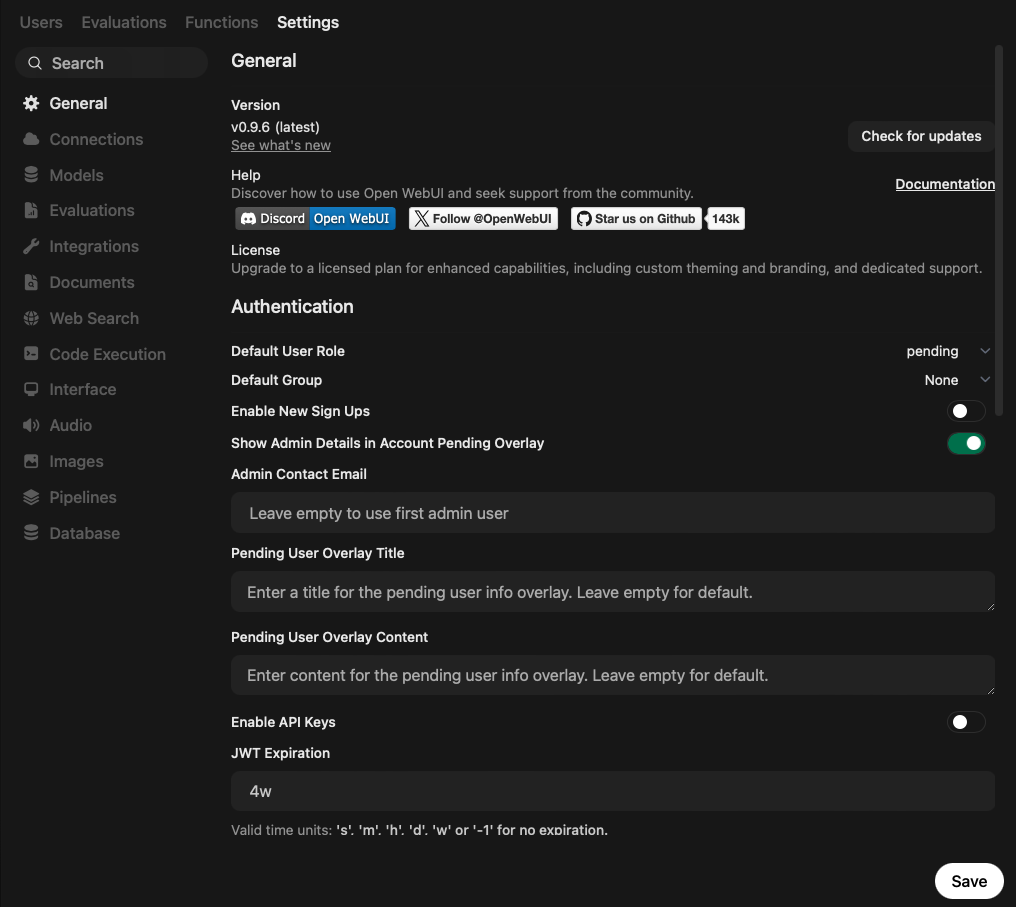
It is structured into four horizontal tabs: Users, Evaluations, Functions, Settings. The Settings area displays a vertical list of configuration items. To better understand when to apply each setting, the following sections group options into coherent lifecycle phases or concerns.
Model Management
Model Definition
With Settings => Models, all base models offered by connected API endpoints are shown. Similar to custom model declarations, all base models can be adjusted with their prompts, knowledge, files, tools, and skills. Base models can also be pinned to the sidebar, hidden or disabled, and their settings exported as a JSON file.
Here is an example export:
[
  {
    "id": "gpt-5-mini",
    "object": "model",
    "created": 1754425928,
    "owned_by": "openai",
    "connection_type": "external",
    "name": "gpt-5-mini",
    "openai": {
      "id": "gpt-5-mini",
      "object": "model",
      "created": 1754425928,
      "owned_by": "system",
      "connection_type": "external"
    },
    "provider": "",
    "urlIdx": 0,
    "is_active": true
  }
]
Model Providers
Open WebUI requires external LLM providers. Via Settings => Connections, different OpenAI API-compatible LLM endpoints and Ollama instances can be configured.
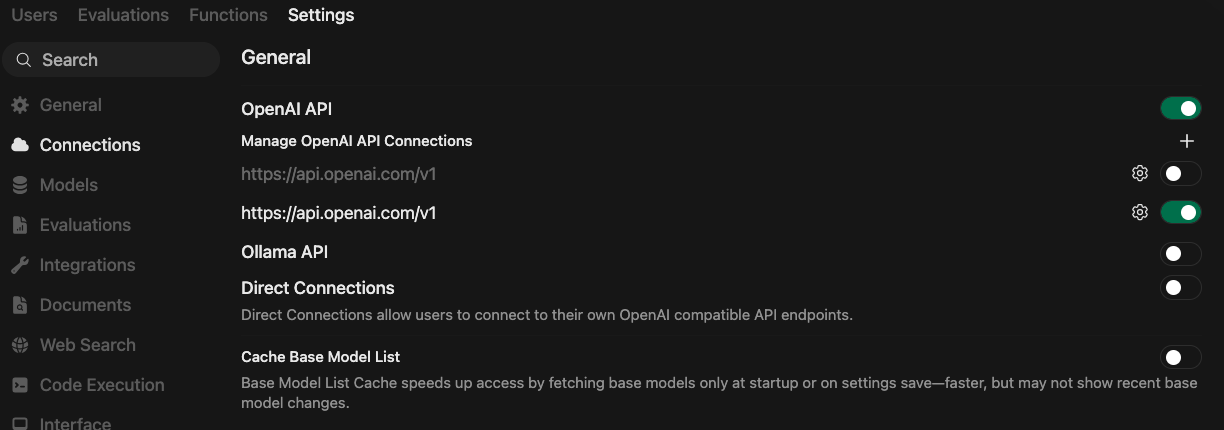
For direct OpenAI API connections, the toggle OpenAI API needs to be active. Then, with the + button next to Manage OpenAI API Connections, additional connections can be set up. Each one requires the following steps:
- Enter the API endpoint URL, e.g.
https://api.openai.com/v1. - Insert the API key.
- Click on the double-arrow icon to validate the connection; a green popup appears to show success.
For Ollama instances, the Ollama API toggle needs to be active too. Similarly, the + button next to Manage Ollama API Connections opens a configuration dialog in which at minimum the URL and authentication details need to be entered, and additionally a prefix and model ID to better distinguish these models once selected.
Two more options exist. The Direct Connections toggle enables non-admin users to add connections too. The Cache Base Model List can improve performance when many connections are defined: available model results are cached locally and are not fetched again every time a user selects a model or a base model for customization.
Model Ratings
All user ratings during chats are correlated per model, and comparison scores are computed. This can help when using custom models to determine their long-term effectiveness. Of course, for all LLM providers, public leaderboards can provide ratings from a much broader audience.
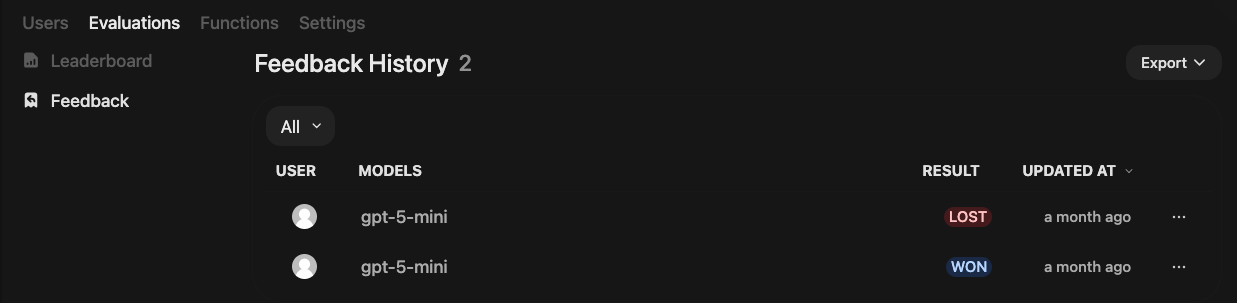
Via the Evaluations tab, or from Settings -> Evaluations, two subfeatures can be accessed.
The Leaderboard is a full list of all configured models and captures individual users’ scores for particular chats. Each chat bubble provides quick feedback via the “Thumbs Up” and “Thumbs Down” buttons. When users regenerate answers and score them, a data point about cross-model scoring is completed. Over time, this private leaderboard should provide valuable insights based on the users’ utilization of Open WebUI for their purposes, and is therefore better fitting than any public leaderboard and its scores.
The Feedback section shows concrete data points rendered as a list. Individual data points can be selected, which opens a popup with the evaluated text snippet and the rating.
Model Capabilities
Web Search
For most use cases, web search is a mandatory requirement for fetching up-to-date information. This feature can be configured via Settings => Web Search.
Internally, the search process is handled by two components. A Web Search Engine processes a search query and returns a list of relevant links, and the Web Loader Engine fetches the links and extracts text.
For the Search Engine, more than 20 different providers can be configured, such as Ollama Cloud, Perplexity, Brave, or Firecrawl. For each of them, a slightly different dialog is shown, containing the authorization information for the service, typically an API key, and other specific options.
The loader engine can be configured as Playwright, Firecrawl, Tavily, or an external endpoint. Options exist for providing embeddings to the results or processing them as-is.
Here is an example of configuring the Brave search engine.
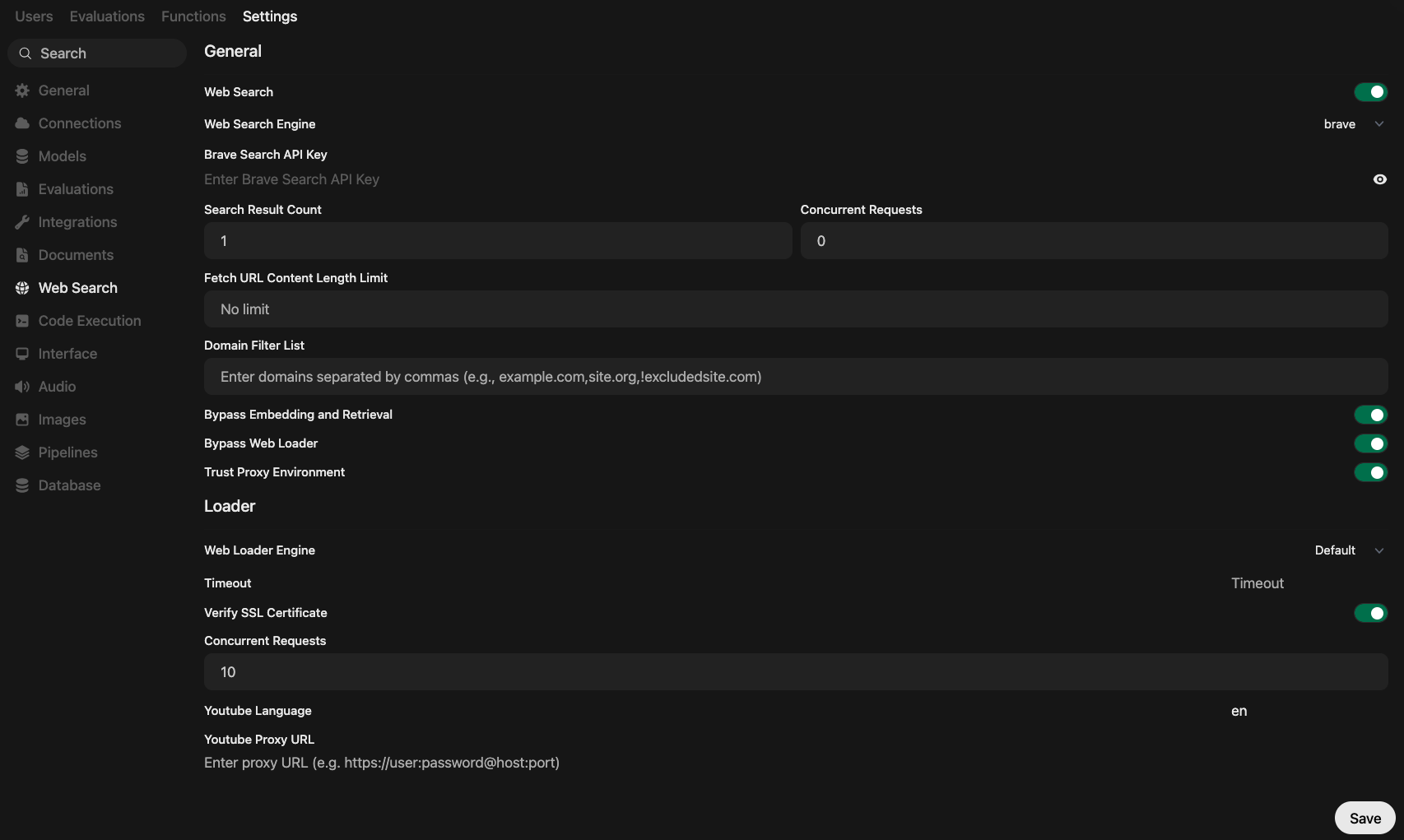
Note that merely configuring web search does not mean the model uses it. It needs to be configured as both a capability and tool access.
Code Execution
Before full privileged code generation and execution by LLMs became a standard feature, Open WebUI offered small-scale code execution inside chats, intended for data processing and data visualization with Python code.
The Settings => Code Execution screen shows two different sections corresponding to individual features: Code Execution activates the selected interpreter instance, and the Code Interpreter toggle enables this capability for models. The settings dialog for both is very similar:
- A feature toggle for activation or deactivation.
- The Python engine to be used, either Pyodide, which executes WebAssembly directly in your browser, or a connection to a locally running Jupyter Notebook environment.
Content Management
Documents
When a document is added to Open WebUI, e.g. by uploading it into a conversation or when maintaining a knowledge base, its content is parsed, chunked, and stored. The Settings => Documents page provides complex options for this process - here is a screenshot.
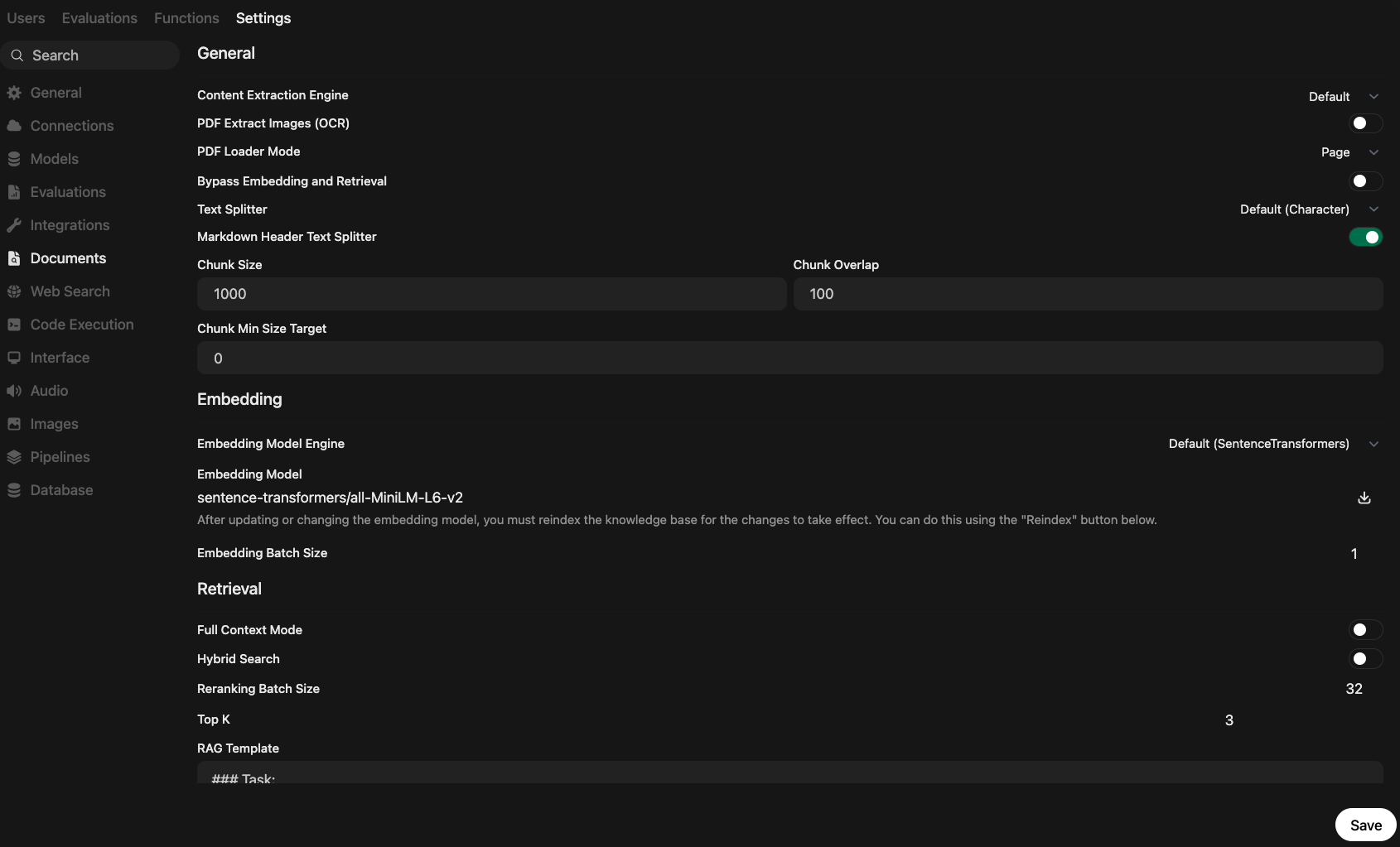
Configurable are the following aspects:
- Extraction Engine: Choose from third-party OCR providers like Datalab, Mistral OCR, or PaddleOCR, or configure self-hosted instances of Tika, Docling, and MinerU. Instance-specific details, at least a URL and access token, need to be provided too.
- Text Splitting: Text can be split by character or token, and the chunk size and overlap can be configured. A toggle for splitting markdown headers is also configurable.
- Embedding Engine: The chunks are embedded, which means converted to a vector representation for better semantic search and retrieval. Different engines are configurable: the built-in Sentence Transformers model, a connection to local Ollama, or outbound connections to OpenAI or Azure OpenAI. The concrete embedding model offered by the connection needs to be defined. But take care: Changing the model invalidates all prior embeddings and starts a batch process to reindex all existing documents.
- Retrieval: During a conversation, relevant content from the documents is queried and added as context to the LLM. The amount and scope of retrieved documents can be controlled with several settings:
Full Context Mode: Instead of only sending the highest-probability chunks, the complete document is retrieved. Helpful when the documents themselves are small, and might lose relevance when only parts of them are processed.Hybrid Search: When enabled, the internally triggered search combines keyword and semantic search in its vector DB of embedded chunks.Reranking Batch Size: A technical setting that determines how many chunks are grouped together during a reranking of results.Top K: The absolute number of chunks that are returned.RAG Template: The internal system prompt that the model uses to trigger a keyword or semantic search in the vector database.
Images
During a conversation, the intent to generate an image might occur. When configured, Open WebUI sends this request to the configured provider, not the base model of the chat, to generate the images.
The configuration dialog at Settings => Image is separated into two sections for image generation and image editing, as shown in the following picture.
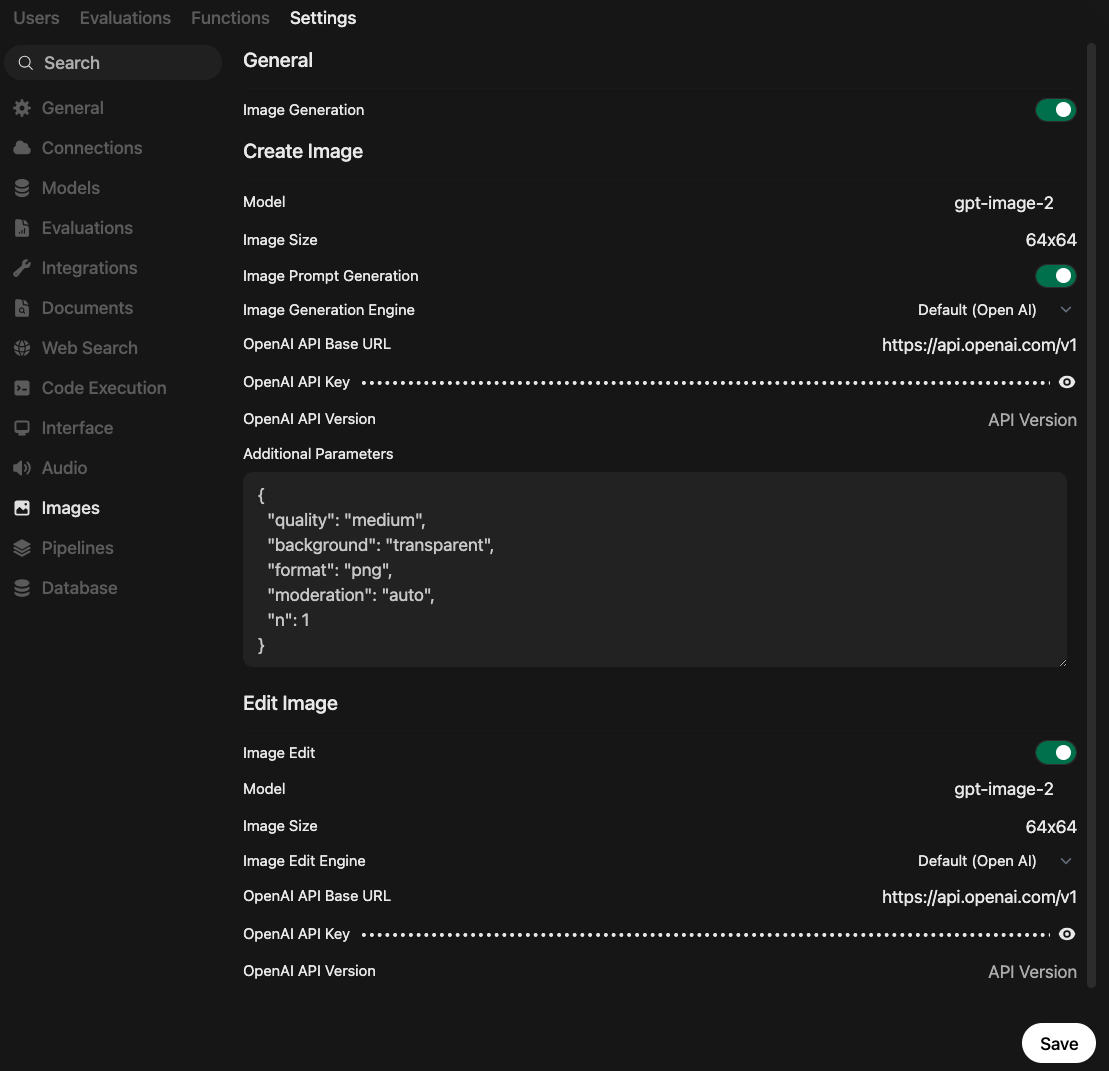
Both sections follow the same set of required inputs:
- A toggle to activate the feature.
- The image generation engine, which can be OpenAI, ComfyUI, AUTOMATIC1111, and Gemini.
- The base URL for the selected provider (upstream provider URL or local endpoint).
- An API key for authentication.
- The API version that is queried for the image generation or editing request.
- Additional parameters are passed as the request body to the configured model.
User Management
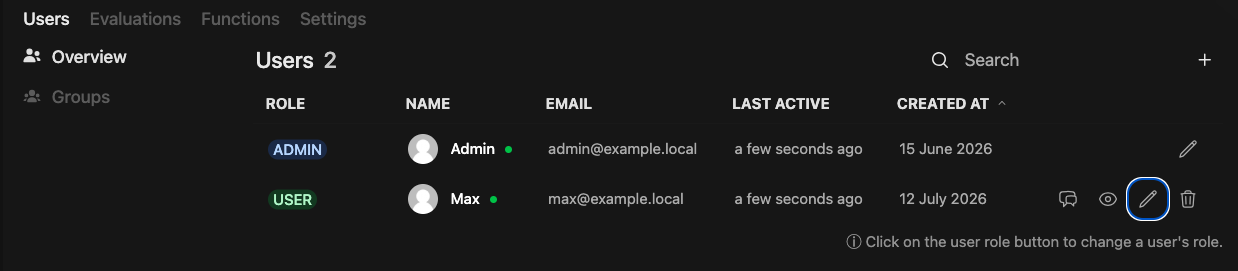
The Users section is a complete management interface. New users can be registered with their username, e-mail, and role. Accounts can be added via a pop-up menu or via CSV, which is convenient for large user bases.
For existing users, their chats can be browsed, and a preview of their access rights to models, knowledge, and tools is shown. Their details can be modified, or the account can be deleted.
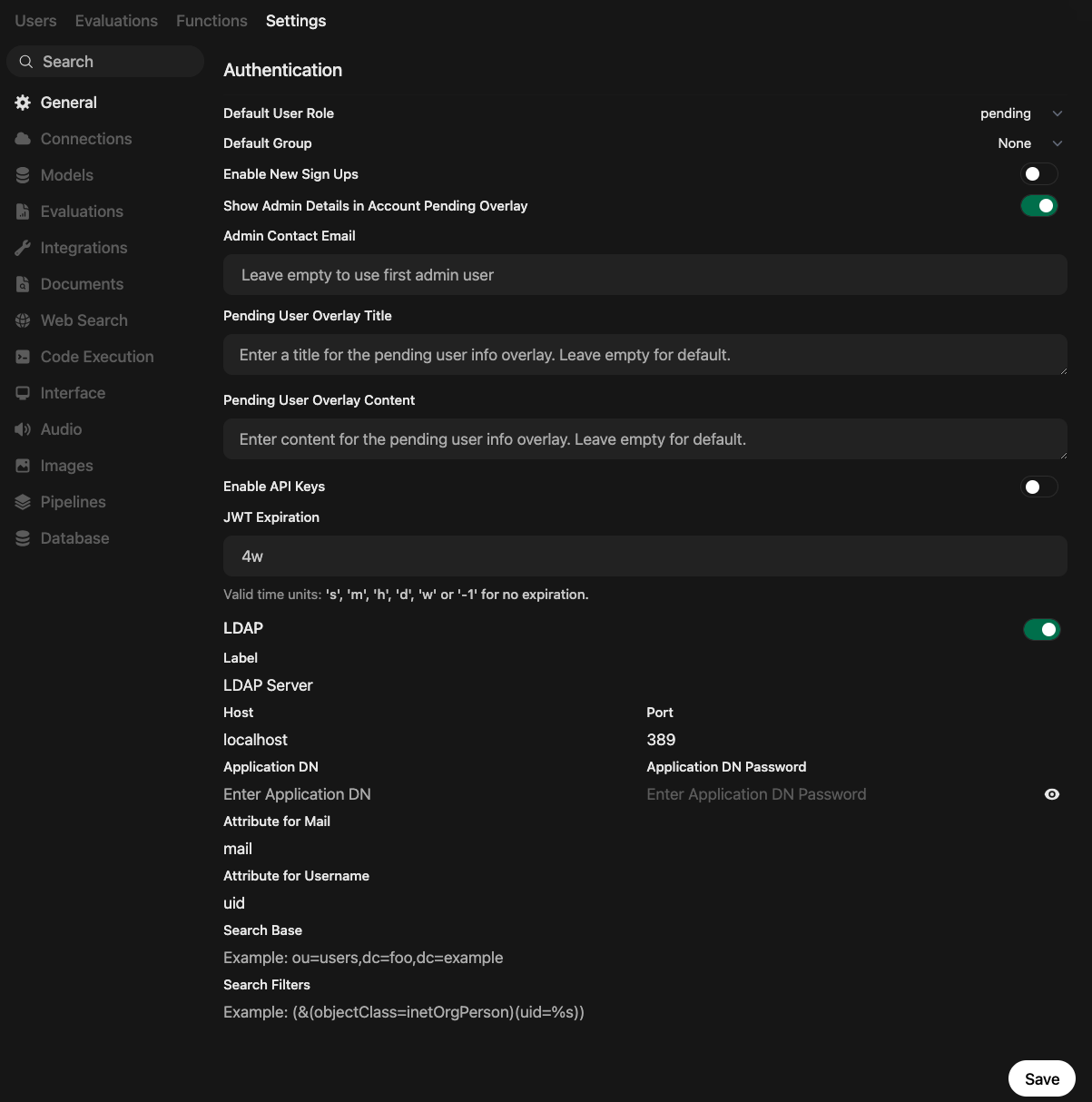
Other user settings are a bit hidden. In Settings => General, the following options are presented:
- User signup: Enable or disable new signups, and determine the default role and group for new users.
- Pending users: Following signup, users need to be accepted by another user with admin rights. Admin users see an overlay for pending users, which can be given a custom name and content. Also, the admin e-mail address might be shown to users so that they can contact the admin on their own.
- API keys: When this option is enabled, users can generate custom JWT access keys for opening Open WebUI’s internal API to external systems.
- LDAP: Instead of managing usernames and credentials inside the Open WebUI internal database, user accounts can also be gathered from a connected LDAP instance. Enabling this feature via its toggle shows a wealth of settings typically required for an LDAP setup.
Plugin Management
For extending Open WebUI, two mechanisms exist: Pipelines, now deprecated and not further explained here, and functions.
The function management GUI, accessible via Settings => Functions, allows you to create, read, update, and delete configured functions.
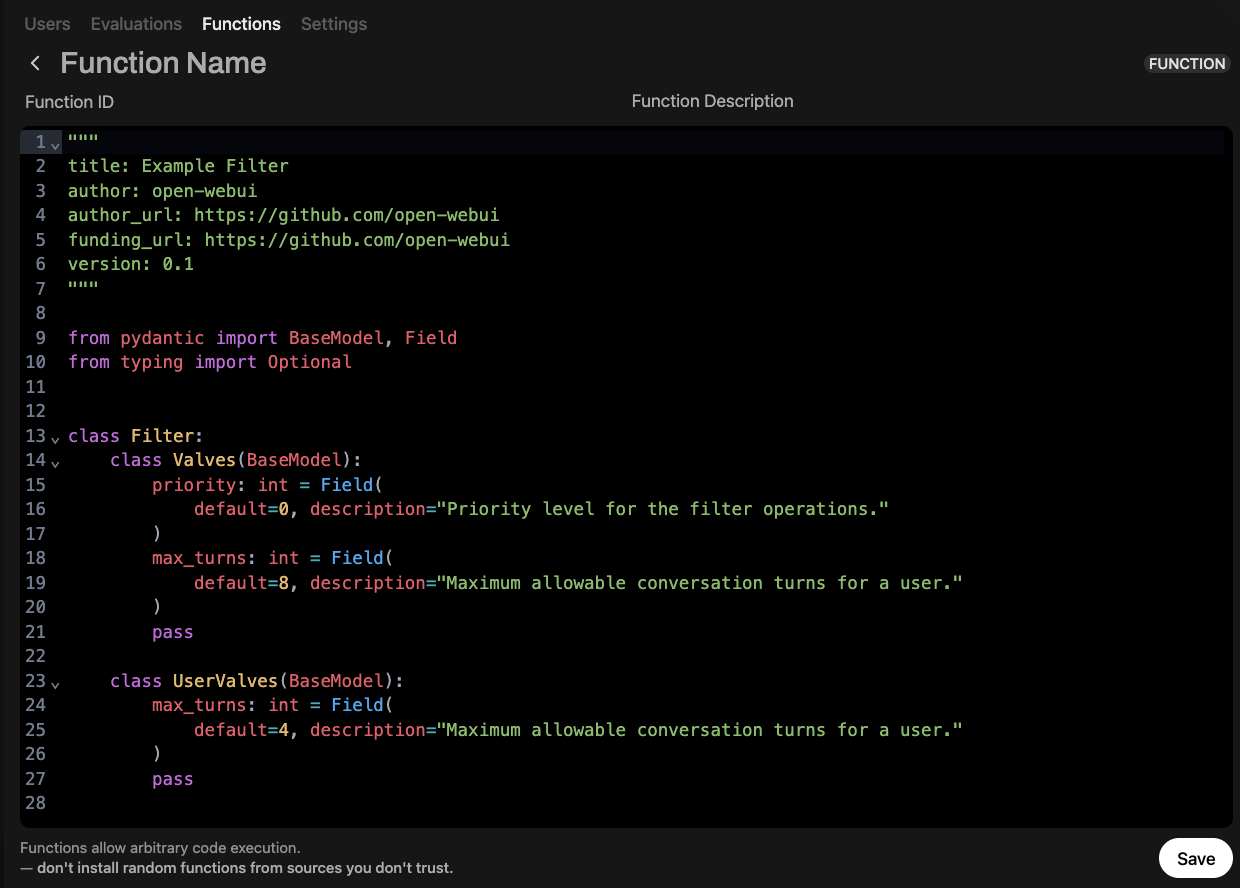
A complete coverage of functions is outside the scope of this article, but the following overview gives a summary of their capabilities.
- Actions: Implement additional buttons that are shown on the chat bubbles and provide additional functions, e.g. for adding a permission grant before code execution, turning text into an image or downloadable audio file, or creating visualizations.
- Filters: Modify messages before they are sent to the LLM, or intercept messages from an LLM to the user. Use cases are numerous: general content moderation, e.g. disallowing specific topics, masking personal information, detecting and blocking prompt injections, or rate limiting. Filters can be defined globally, then scoped to specific models, and either automatically applied or shown as a toggle button in chats for user-on-demand activation.
- Modify Model Outputs (Outlet Function): Adjust the AI’s response after it is processed, before showing it to the user. This can help refine, log, or adapt the data for a cleaner user experience.
- Pipes: When a user chat with a base model or custom model occurs, the back-and-forth of message passing between the chat interface and the LLM provider follows fixed steps. Pipes are an advanced concept that breaks down this fixed structure. They allow the definition of additional LLM providers, or, for that matter, wrap any other service to behave like an OpenAI API, and support custom orchestration between them. With this, intelligent model routing can be built based on the complexity of the conversation. Or imagine a chain of models along which LLM output is passed to validate and enrich an answer before it is passed to the user.
- Events: A new feature published with
Open WebUI v0.10.0allows code to run at any of 170 system events such as user login, model definition, chat creation, knowledge database update, and much more. This effectively opens the door to programming Open WebUI’s behavior, enabling automatic routines to be triggered.
General Features & Settings
User Features
In Settings -> General, at the bottom section, a host of general features can be configured.
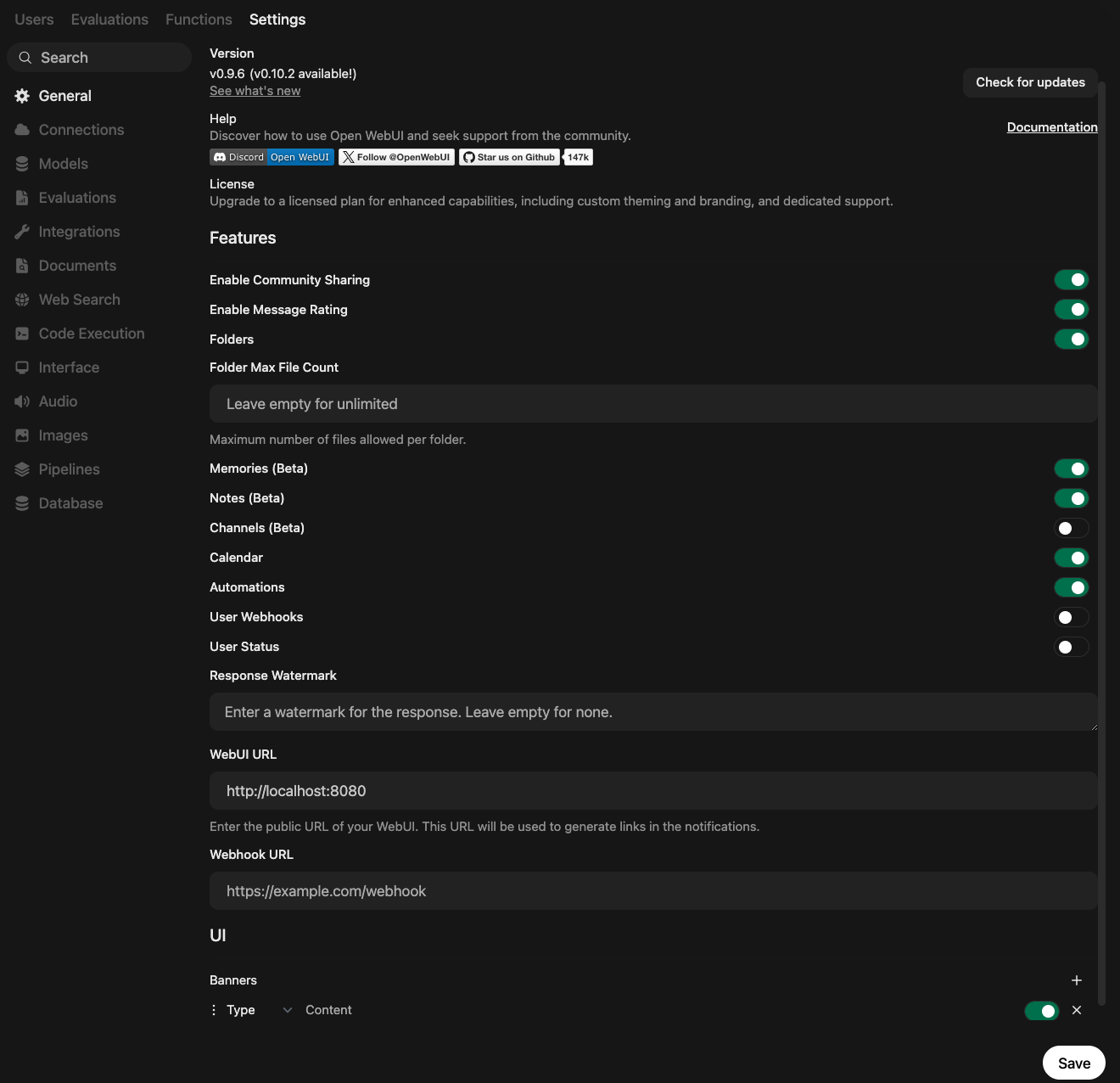
Most of them are tied to which features users have access to.
- Enable Community Sharing: When active, users can export a conversation to the public community page. The granularity and visibility of this export are controlled by four different types: private, public, or public with full history.
- Enable Message Rating: This feature enables users to provide feedback to particular answers in a conversation. These ratings provide the basis for the earlier explained
evaluationfeature. - Folders: Allows users to structure their chats into folders, which helps keep ongoing conversations about different topics organized. A limit on the maximum files per user can be set up too.
- Calendar: Enables the user-specific calendar feature, allowing custom entries and programmable event scheduling to trigger automations.
- Automations: Automations allow users to trigger predefined instructions with a specific model, effectively starting an asynchronous chat. The toggle enables this feature.
- User Webhooks: Webhooks are meant to inform external systems about an event. For users, only one type of event is documented: the completion of a
chat_response. The event payload includes the chat ID, title, and last_message. It only triggers for asynchronous, not interactive, user chats.
Additional beta features can be configured too:
- Memories: Enables long-term storage of user-specific facts that are injected into each conversation. It is meant for customizing the chat experience and keeps track of personalization, like the preferred user name or conversation tone, and processes recommendations for complex tasks.
- Notes: This user feature allows custom text notes to be created and used in chats. It needs to be enabled by the admin.
- Channels: This novel feature changes conversation completely. Instead of 1:1 chats between users and an agent, multiple users can join a conversation space, and multiple models can be attached and called. Also see the official documentation about Channels.
Interface Settings
In Settings -> General, following interface settings are exposed.
- User Status: This toggle enables active reporting of user status, showing which users are logged in and using the Open WebUI instance.
- Response Watermark: In this field, a custom text can be entered, which is appended to each system message, visibly in user chats.
- Banners: From time to time, general information for large user bases needs to be shown, for example announcing updates or LLM model deprecations. This feature lets the admin user configure such a banner, which other users can see once they log into the system.
System Settings
The admin user can configure externally visible URLs via Settings -> General.
- WebUI URL: When the Open WebUI instance generates events, it includes its public URL string from this field.
- Webhook URL: Defines the external WebHook API endpoint to which all system events are sent.
Conversation Features
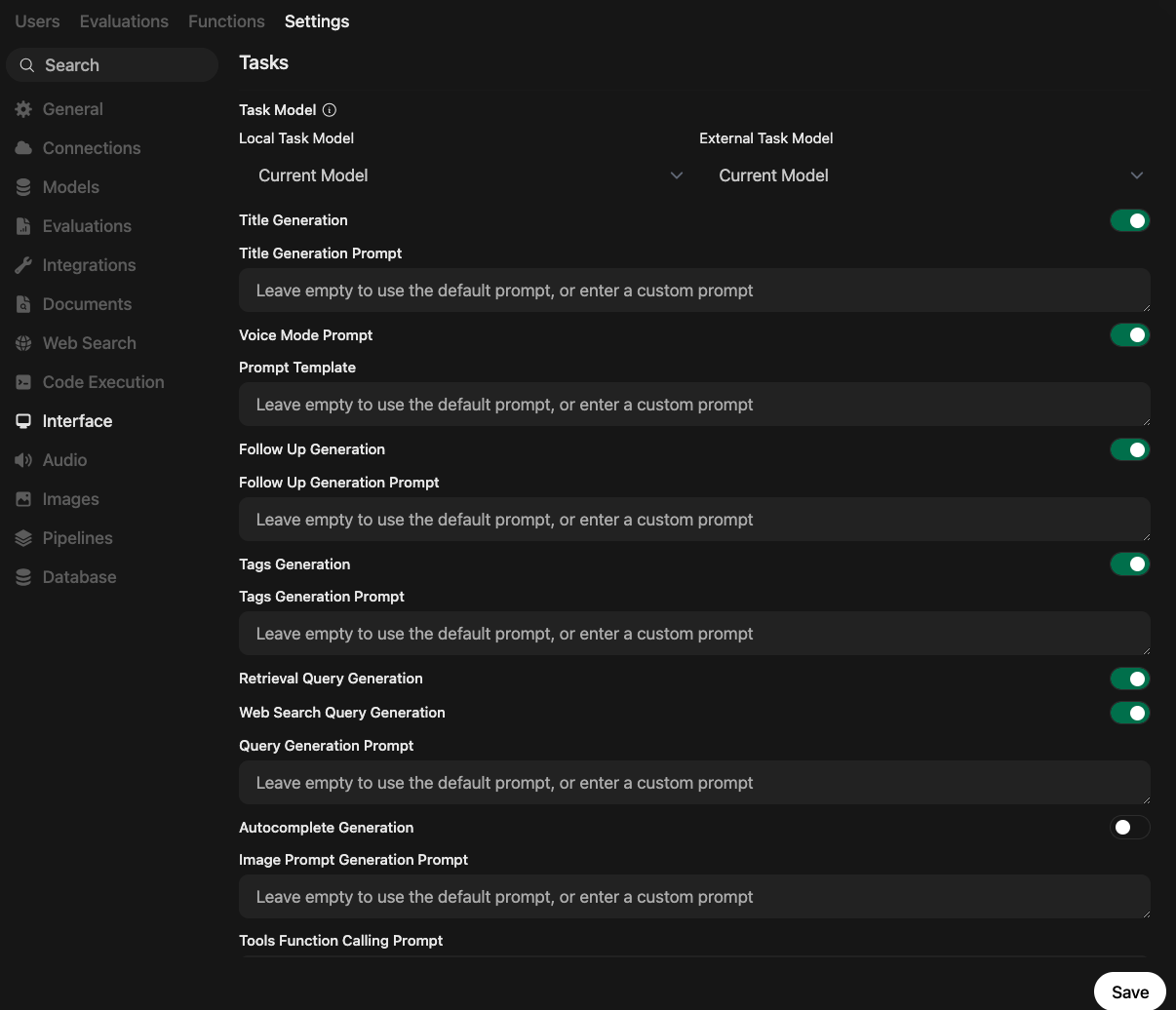
Open WebUI generates background tasks for generating the conversation title, follow-up questions, tags, RAG, and web search queries.
In Settings => Interface, these tasks can be enabled or disabled, the used model determined (defaulting to the selected model, but can be a fixed light model for cost savings), and open prompt overrides configured.
Also, prompts for autocompletion and tool function calling can be defined, which can be helpful when tool calls are not generated or properly executed.
Speech Settings
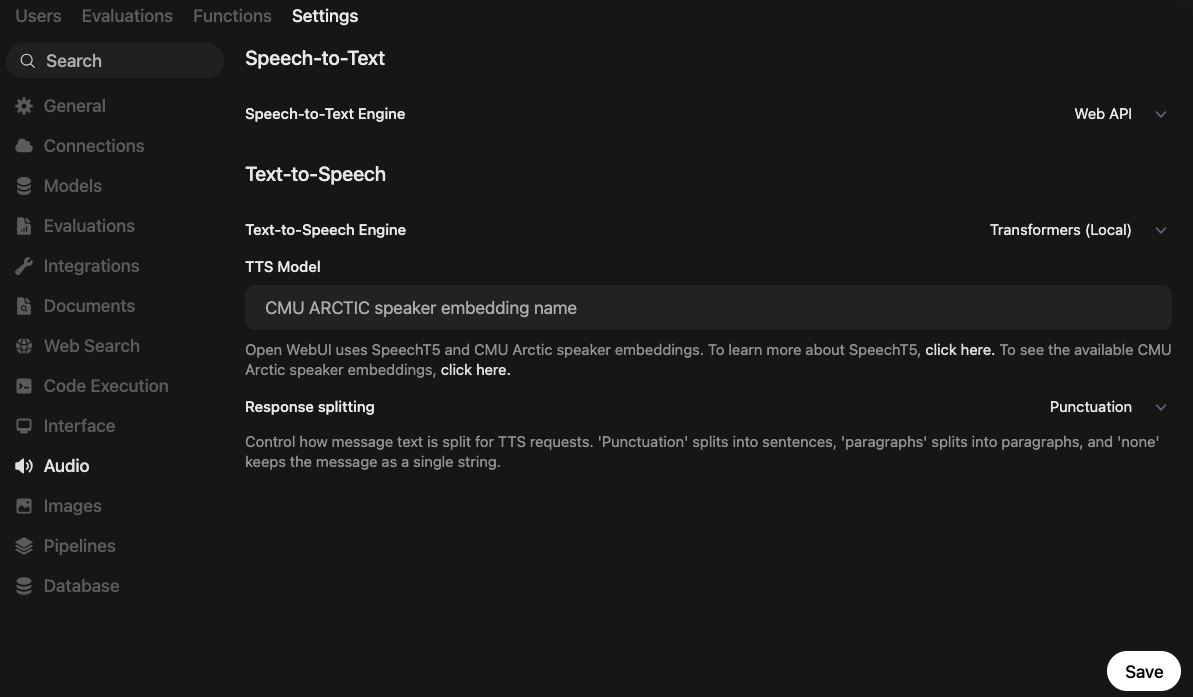
In Settings => Audio, several aspects of Speech-to-Text and Text-to-Speech become configurable.
- Supported MIME Types: Determines which media MIME types are supported, which means which audio files can be dropped into a chat bubble. The default configuration allows all
audio/*and thevideo/webmformat. - Speech-to-Text Engine: Determines the backend service to generate text, which is either: a) Web API, the browser internal engine, b) a local Whisper model, or c) an external provider from OpenAI, Deepgram, Azure AI Speech, or Mistral AI.
- Text-to-Speech Engine: The backend service for generating speech, with these options: a) Web API, which is browser internal, b) Transformers (local), which connects to local models published at SpeechT5, or c) one of the external providers OpenAI, ElevenLabs, and Azure AI Speech.
- Response Splitting: Configure how natural language pauses are recognized in the source material.
Operations
Database Backup
The Settings => Database dialog is intended for storing or importing the configuration database or settings. Specifically, it offers the following functions:
- Configuration: All configuration options are represented in JSON format. The existing configuration can be exported, e.g. to make a permanent backup, and imported. Here is a small excerpt from such a file.
{
  "version": 0,
  "ui": {
    "enable_signup": false
  },
  "openai": {
    "enable": true,
    "api_base_urls": [
      "https://api.openai.com/v1",
      "https://api.openai.com/v1"
    ]
    // ...
  },
  "models": {
    "base_models_cache": false
  },
  "rag": {
    "embedding_engine": "",
    "embedding_model": "sentence-transformers/all-MiniLM-L6-v2",
    "embedding_batch_size": 1,
    "enable_async_embedding": true,
    "embedding_concurrent_requests": 0
    // ...
  },
  "google_drive": {
    "enable": false
  },
  "onedrive": {
    "enable": false
  },
  "terminal_server": {
    "connections": [
      {
        "id": "6351ac6b-cb9e-48d3-bf87-d64da77f93ff",
        "name": "",
        "enabled": true,
        "url": "http://open-webui-terminal:8000"
        // ...
      }
    ]
  },
  "tool_server": {
    "connections": []
  }
}
- Database: Exports the internal database that contains the following items:
- User accounts and authentication data.
- Chat history and conversation metadata.
- App settings and configuration (similar to the JSON export).
- Model/config entries.
- File-related records and other system state.
- RAG-related non-vector metadata.
- Chats: Exports a JSON document with all chats. Here is a small excerpt.
[
  {
    "id": "88dfd8b0-6758-45d9-bf00-bdc540b2253e",
    "user_id": "b5b63a0d-ab5c-463e-ac3f-5ceacb6f3f94",
    "title": "Daily News Check",
    "chat": {
      "title": "Daily News Check",
      "models": [
        "gpt-4o"
      ],
      "history": {
        "currentId": "4f914f3d-b089-4563-b139-d2562b1d3ad8",
        "messages": {
          "b8051ec5-fa8b-4945-8401-7c5619066d78": {
            "id": "b8051ec5-fa8b-4945-8401-7c5619066d78",
            "parentId": null,
            "role": "user",
            "content": "Check the Daily News, write a summary.",
            "childrenIds": [
              "4f914f3d-b089-4563-b139-d2562b1d3ad8"
            ],
            "timestamp": 1784888705,
            "models": [
              "gpt-4o"
            ]
          }
        }
      }
    }
  }
]
Version Information
In Settings -> General, at the top of various other options, the current version, banners for accessing the project’s Discord server, social media presence, and GitHub repo are shown.
Conclusion
Open WebUI is a highly customizable, multi-provider chat interface. This article explored all settings that the admin user can configure, typically global defaults that other users consume or further customize. You learned about these features: a) model management, b) model capabilities, c) content management, d) user management, e) plugin management, f) General Features & Settings, and g) Operations.