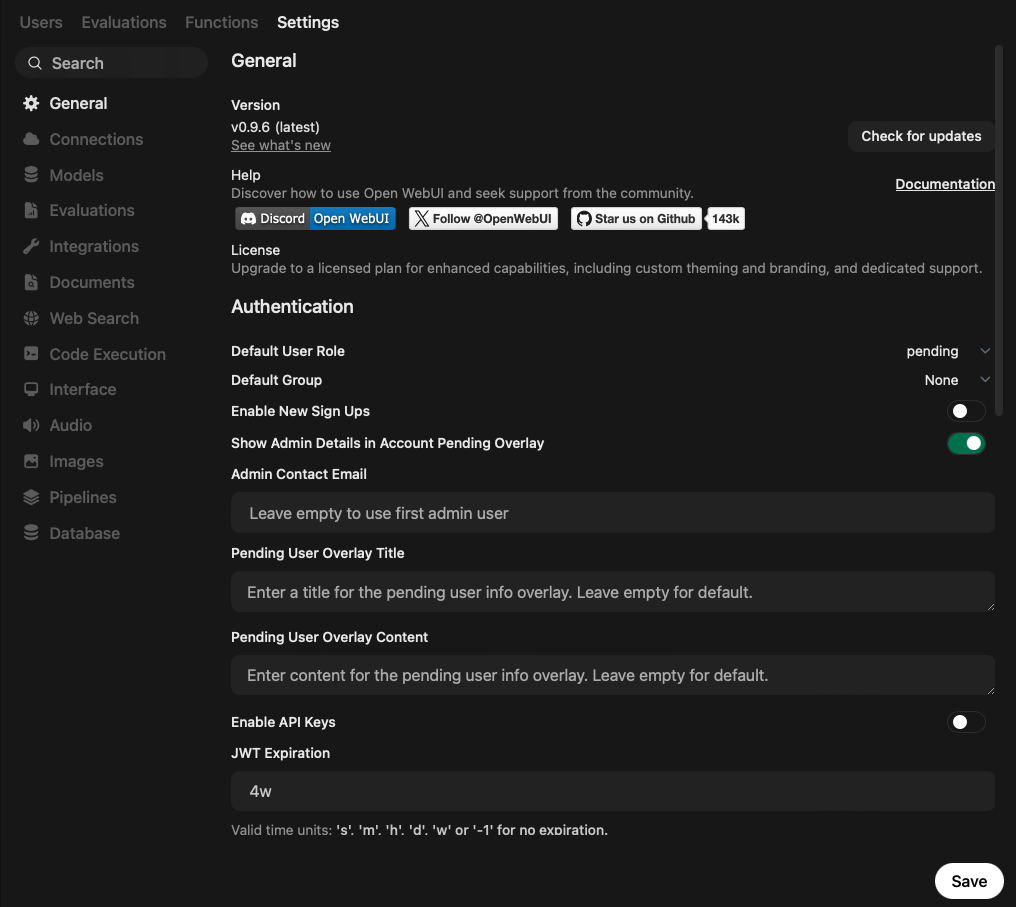
Open WebUI is one of the first chat interfaces that evolved around LLMs. Initially designed to work with local Ollama models only, it has since evolved to support any OpenAI API-compatible endpoint. With the addition of skills, tools, memory, and the recent ability to execute code with the terminal connection, all features for defining agents are present.
In this blog series, all Open WebUI aspects, from setup to configuration and utilization, are covered. This article explores all user features and settings. Learn about custom model definition, automations, the model playground, and various GUI and model-calling settings.
The technical context of this article is Open WebUI v0.9.6, published on 2026-06-01. The setup and configuration examples should also work with newer versions.
While I am fascinated by the capabilities of artificial intelligence tools and applications, crafting blog articles remains my personal skill. Every character, number, and symbol in this article was typed manually, with the exception of verbatim copies from log messages and screenshots.
User Settings Entrypoint
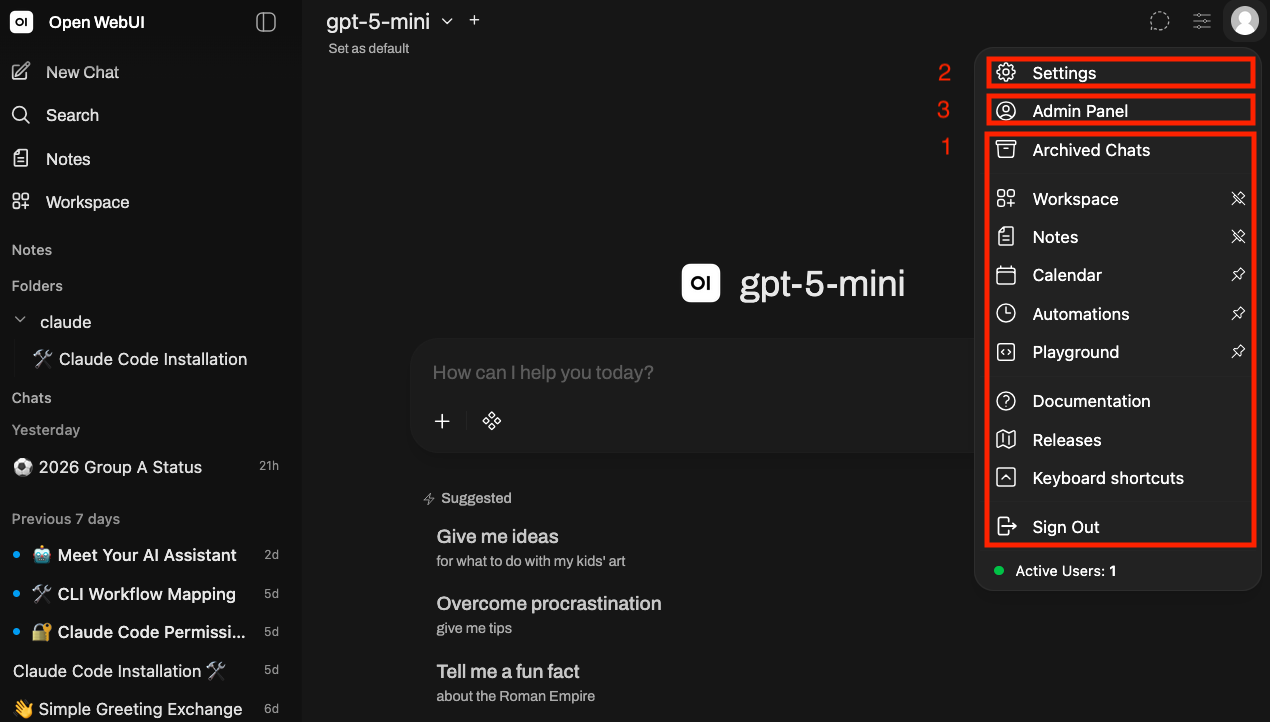
The main window of Open WebUI presents a chat interface, a list of past chats, and search capabilities. When clicking on the user icon, a popup is shown, which renders several user features, depicted by 1, and an option to open user settings, depicted by 2.
Each setting group is explored in the next sections.
Note: In an early draft of this article, all features or settings were listed in the order that they appear in the menu. However, grouping them helps to better understand their context.
User Features
Customizable user features determine the extent of functions available in chats. They can be grouped into four sections.
Information and Reflection
Archived Chats
Chats in the “Folder” sections or under the “Chats” section can be archived. This option shows all archived chats, from which they can be restored, exported, or permanently deleted.
Documentation
This menu entry is a direct link to the documentation page docs.openwebui.com.
Releases
Similarly, this opens the GitHub releases page with details of all Open WebUI releases.
Keyboard Shortcuts
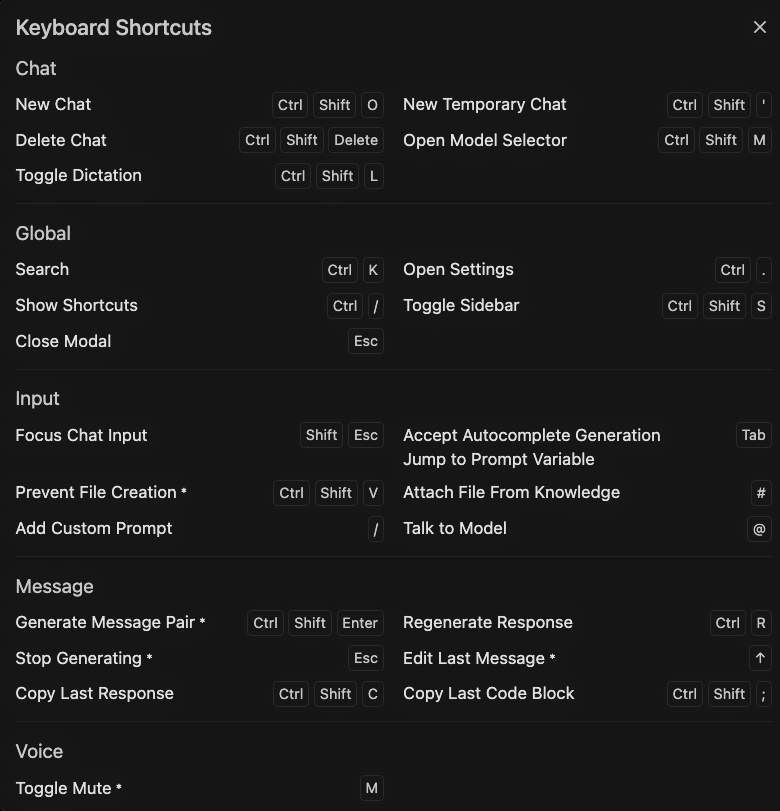
Displays a graphical overview of all defined keyboard shortcuts.
Personal Documents
Notes
Opens a list of all stored notes and allows editing or creating notes with a text editor. This feature was extensively covered in my previous article about Open WebUI features.
Calendar
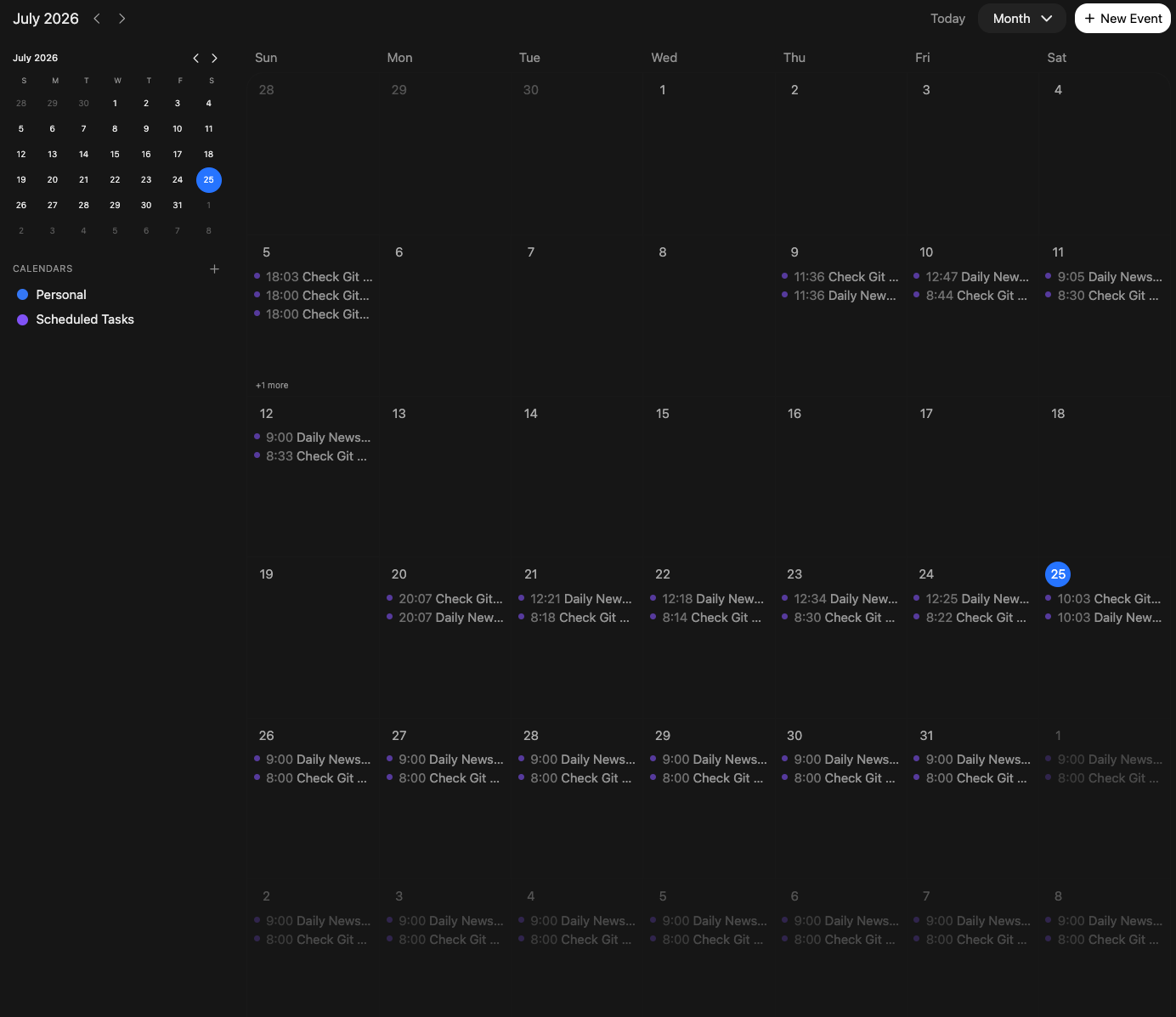
Renders a browsable calendar in which events can be scheduled. Calendars can be shared between users, and model access can be enabled. Based on current findings, the calendar data remains disconnected from other calendar platforms, requiring duplication of content.
Here is an overview of a calendar with scheduled automations.
Model Customization
Workspace
This rather misnomered menu exposes all options to define custom models that can be used for chats or even agentic use. It shows vertical menus that allow the customization of these aspects:
- Models: Provides a full list of all defined models by the configured model provider, and allows you to customize them or define your own models that use a base model. Each model can have custom system prompts, tools, skills, and capabilities.
- Knowledge: This section manages individual collections of documents termed knowledge bases. Each should have a definite name, description, and then a set of text, PDF, or CSV documents. Uploads are parsed automatically and vectorized so that they can be used as context for a model.
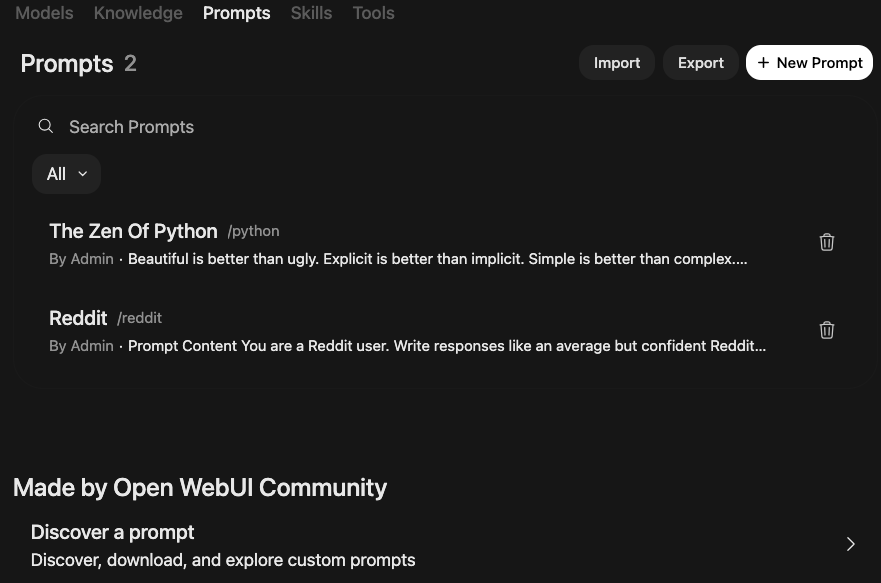
- Prompts: Manage reusable prompts that serve as a strong context for an LLM. The menu allows users to add, edit, and even browse prompts for the community, which can be imported too. In Open WebUI, prompts are invoked by a preceding
/.
- Skills: Precise instructions, typically in the form of how to break down a complex goal into individual tasks. The GUI for this element allows the same CRUD operations as the others. To invoke them, the
$prefix needs to be used. - Tools: Python snippets with a predefined structure that can be invoked by the Open WebUI server directly. Since they run with the current user permissions, tools should be checked rigorously to ensure that they work as intended. Tools extend the capabilities of an LLM, and when used, Open WebUI injects tool definitions so that a sufficiently modern LLM can issue tool calls automatically, which Open WebUI executes.
Model Utilization
Automations
Automations are chat messages triggered at a specified time or interval. An automation includes instructions, a model (and therefore custom prompts, skills, and tools), and optionally a terminal server where code can be executed. Automation runs result in the same chat structure as user chats.
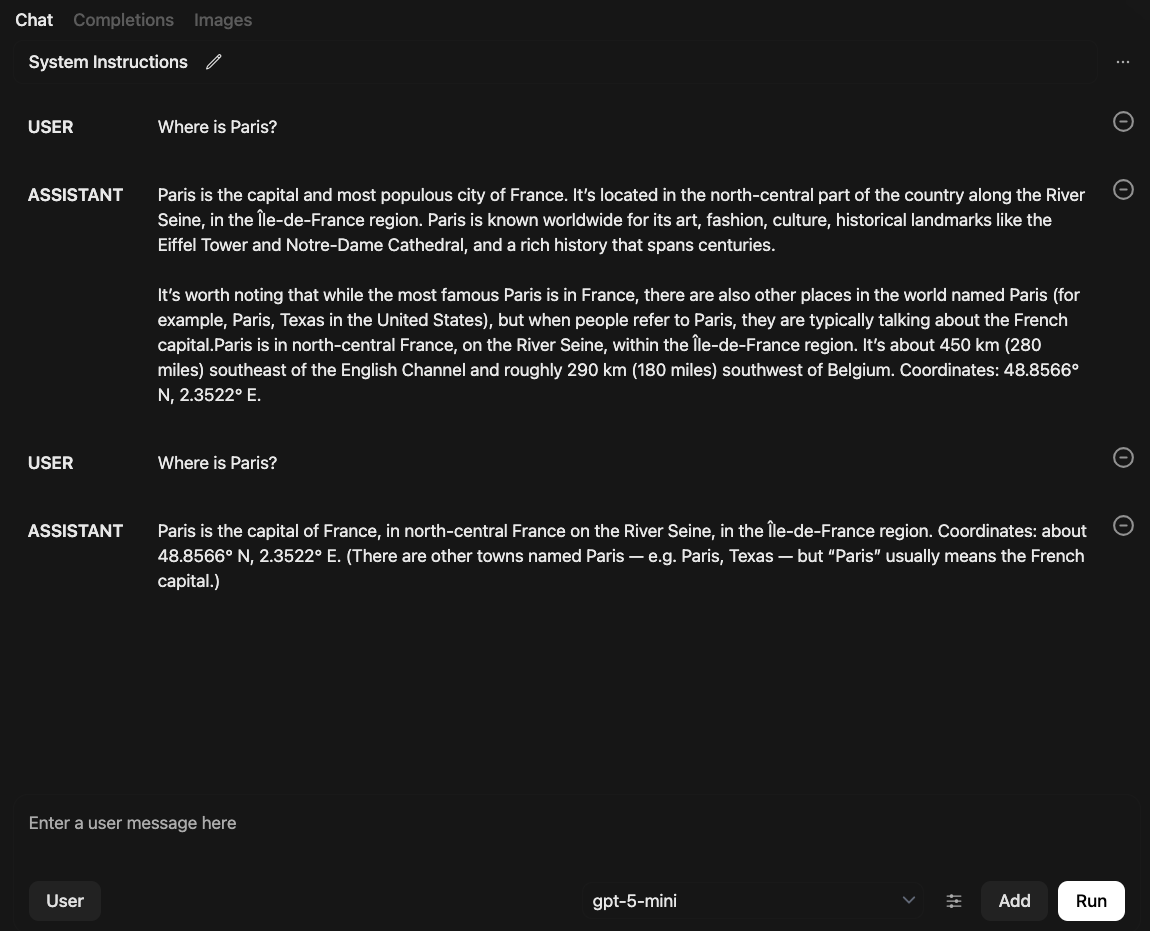
Playground
An admin-only feature that allows experimentation with how different system prompts affect models. When using an Ollama backend, model parameter calls can also be adjusted. Advanced features such as tool calls or providing chat context from external sources are not supported.
User Settings
User settings are displayed as a popup overlay. A list of settings and a search bar appear on the left, while the configuration panel for the selected option appears on the right.
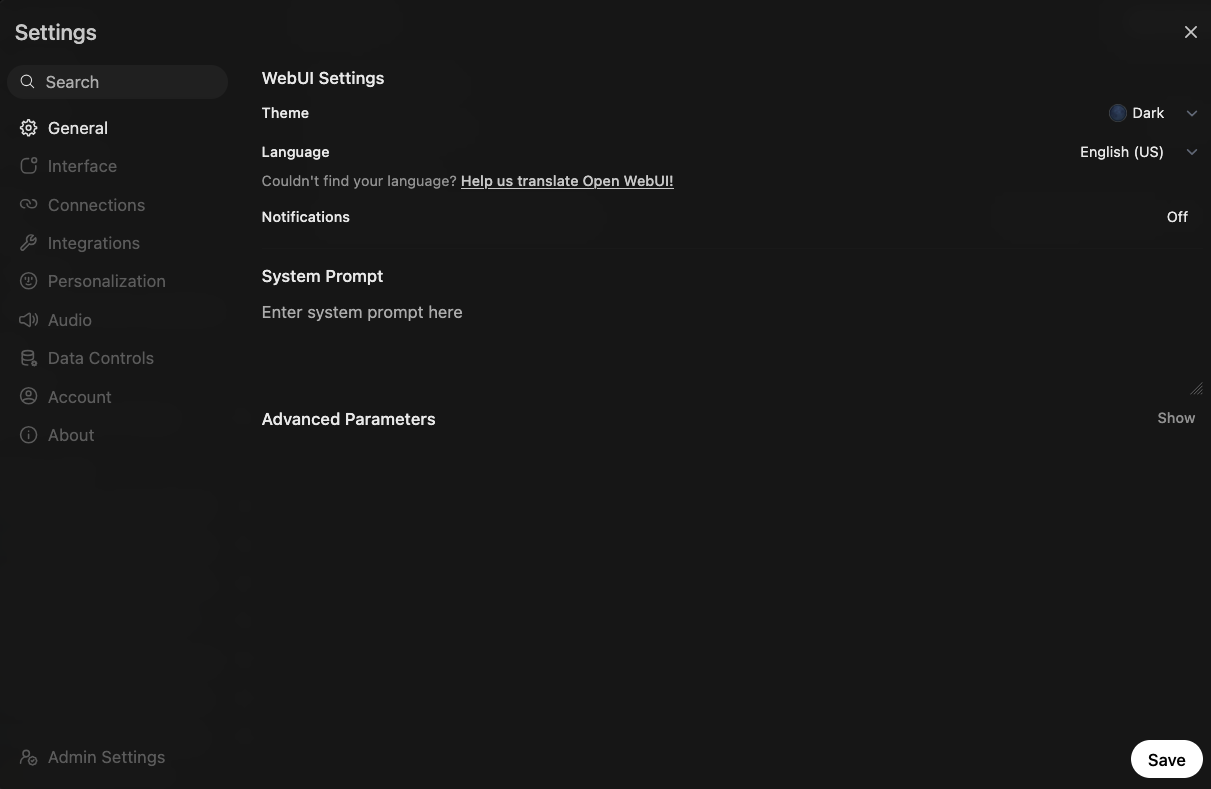
Options are extensive and are explained in their individual sections.
Account Settings
In the Account group, customization like name, user icon, background information, birth date, and the ability to change the login password are provided.
GUI & Interface Settings
Several different sections contribute to this group.
The General section allows a mixed set of configuration options. Related to the GUI are the theme, the language, and whether to show notifications or not.
In the Interface section, a large number of options are rendered.
- UI & Notifications: Scale, notification sounds, and haptic feedback options when Open WebUI is accessed on mobile phones.
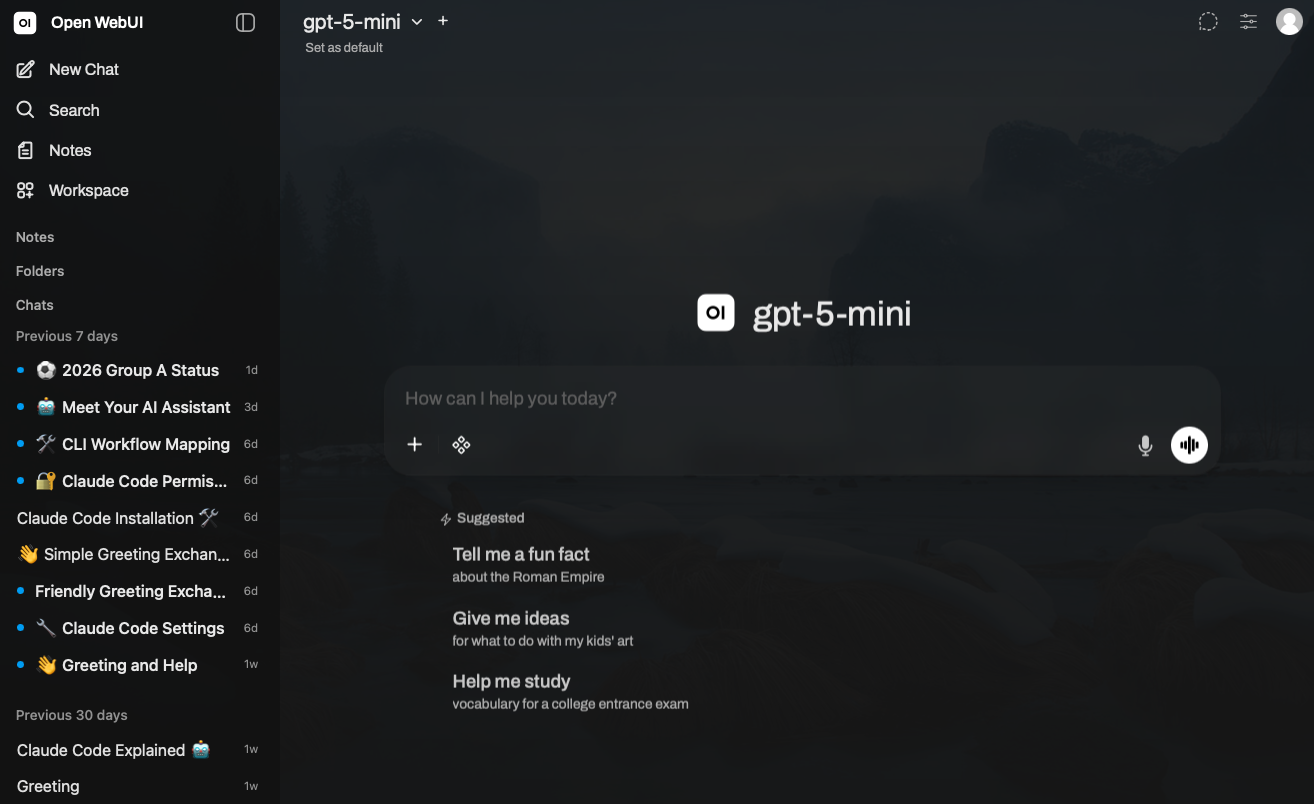
- Chat: Chat bubble design, custom background, fading effect for streaming tokens, markdown formatting, quick action buttons.
- Chat automation: Title generation, follow-up generation, tag generation.
Here is an example of a custom chat interface with a changed background image:
The Audio menu item handles how speech-to-text and text-to-speech are handled. For speech-to-text, the default engine is a local Whisper model, and for text-to-speech, the community project kokoro.js can be used. For readout, different voice sets can be selected.
Model Settings
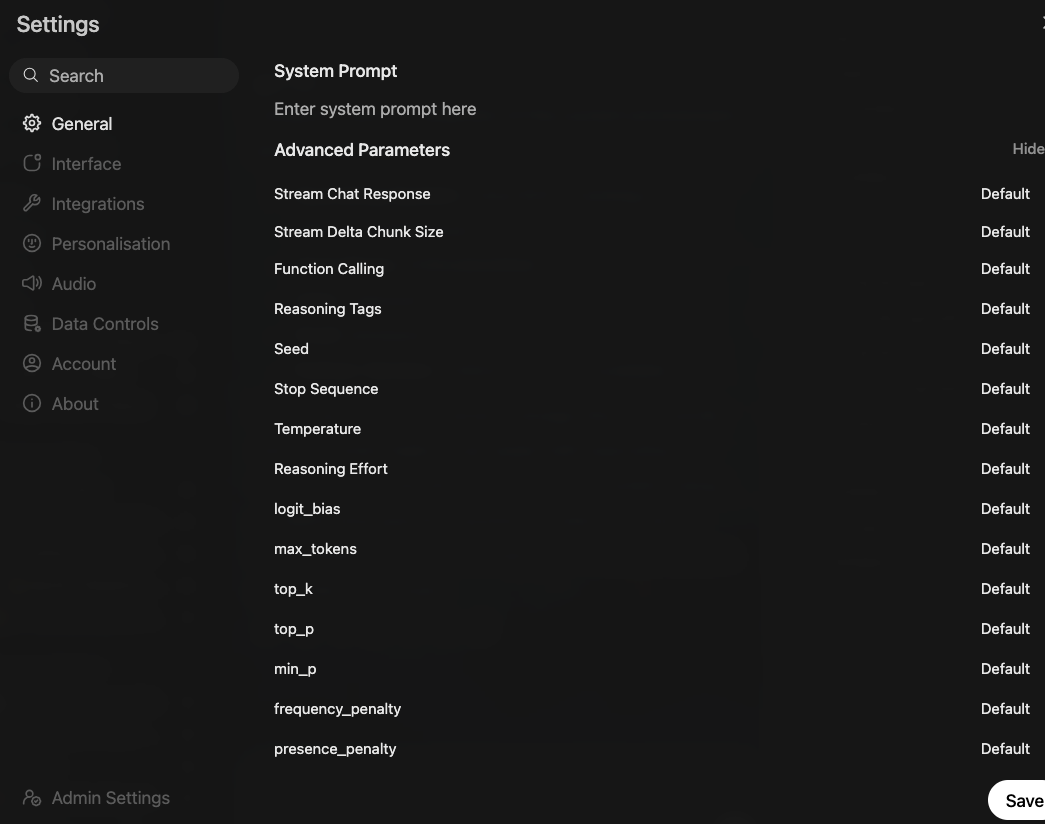
The General section also exposes two settings that apply to all model invocations. First, a system prompt override can be configured, prepending any conversation. Second, several parameters for calling models can be defined, such as temperature (randomness factor), top_k, top_p, min_p (to influence token likelihood), and others. They are forwarded completely in API calls to a locally connected Ollama instance, and some of them are also used for configured OpenAI API connections, given that the provider accepts them.
Here is a screenshot of the available settings.
Additionally, the Personalization setting features only one entry: Memory. Flagged as an experimental feature, these are user-specific facts that serve as permanent context for all invocations. It supplements conversation history and other context sources. By default, they need to be added manually. When advanced models capable of function calling are used, they may gain access to the memory tool.
Tools
The Integrations section allows user chats to access external systems. Two specific categories exist.
- Manage Tool Server: Connect to OpenAPI-compatible tool servers, which integrate external system access and content. Implementations need to follow specific framework definitions implemented in Python. See, for example, the SQL server.
- Open Terminal: Connect to a Docker container that serves as a sandbox for file access and code execution. It is a specific custom Docker image prepared by Open WebUI, with a curated set of tools. See the official GitHub repository open-terminal.
Information & Reflection
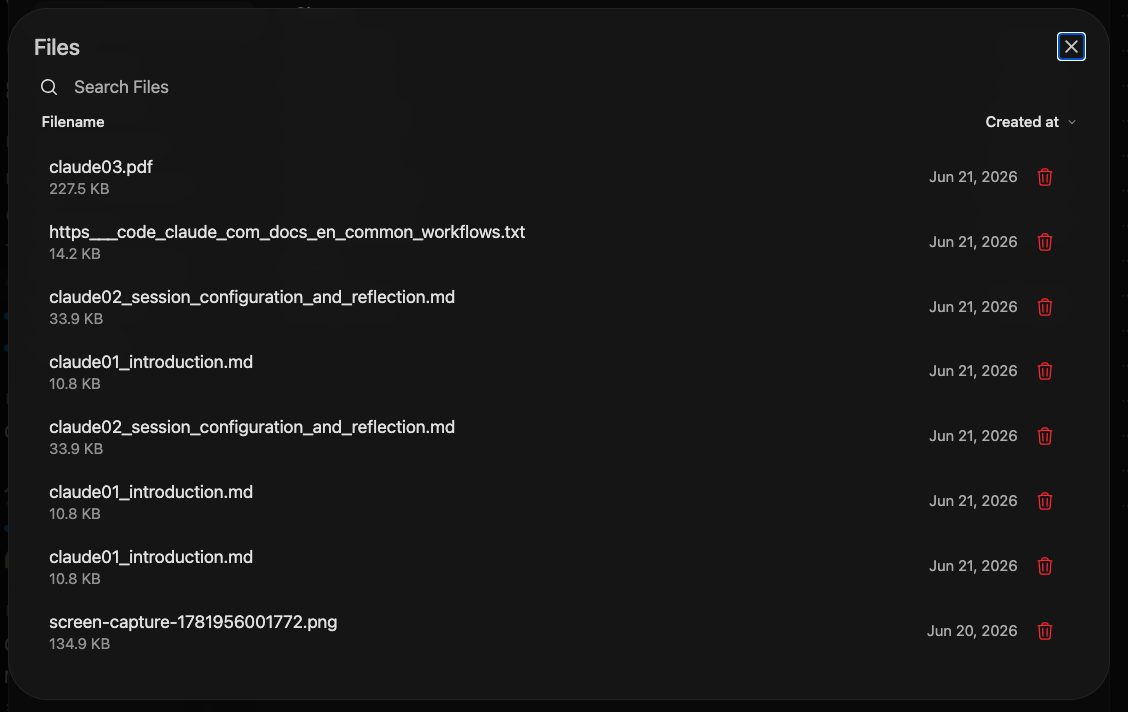
In Data Controls, broad import and export functions for chats are exposed. Also, archived and starred chats can be managed, which renders a list of items that can be restored or permanently deleted. Likewise, all uploaded images or files can be seen and optionally deleted.
The About section shows information and badges to access the Discord, X, and GitHub accounts of Open WebUI.
Conclusion
Open WebUI evolved from local Ollama to a multi-provider OpenAI API connection with full customization of the chat experience, including custom models, tools, skills, and local documents. This article explored the many user features and settings. You learned about four different user feature groups: a) Information and Reflection to access archived chats, documentation, releases, and keyboard shortcuts, b) Personal Documents to browse notes and a built-in calendar, c) Model Customization with base models, knowledge bases, prompts, tools, and skills, and d) Model Utilization, in which a playground for non-stored interactions and automations are provided. The user settings can be grouped into a) Account, b) GUI and Interface, c) Model, including parameters like a model’s temperature or token likelihood values, d) Integrations that connect to tool servers or a terminal, a custom Docker container in which arbitrary code can be executed, and e) Information, with access to archived chats, files, and images, and general release information.