Open WebUI is one of the first tools that appeared in conjunction with Large Language Models. Initially intended as a tool for chatting with a connected local Ollama instance, it evolved to work with any OpenAI API provider and succinctly extended its features to support agentic chats.
Following the setup of Open WebUI in my previous post, this article explores its core features. Learn about conversation essentials, see how notes and knowledge bases are created, and understand the different options to provide chat context.
The technical context of this article is openwebui v0.9.6, published on 2026-06-01. The setup and configuration examples should also work with newer versions.
While I am fascinated by the capabilities of artificial intelligence tools and applications, crafting blog articles remains my personal skill. Every character, number, and symbol in this article was typed manually, with the exception of verbatim copies from log messages and screenshots.
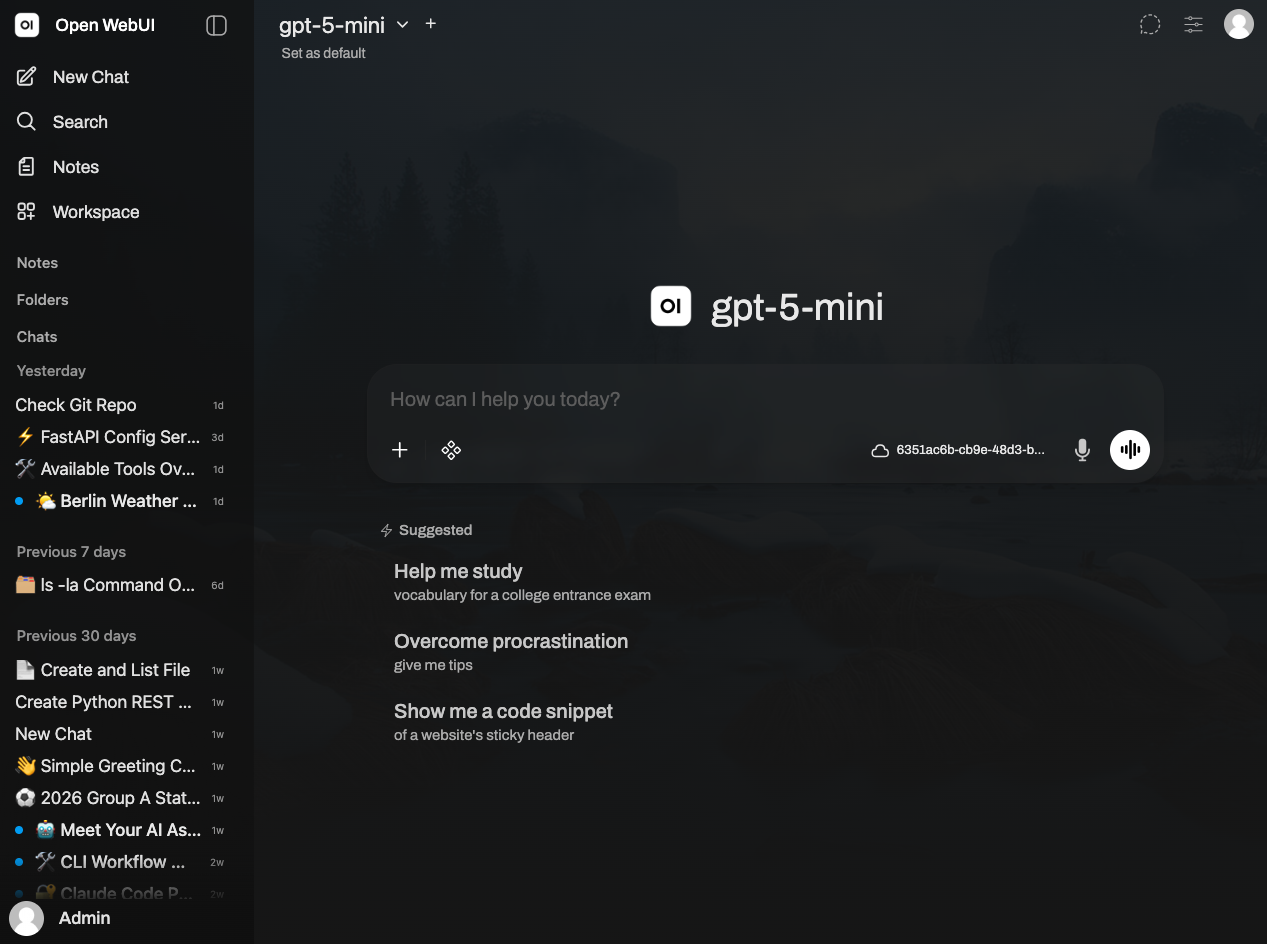
Open WebUI Startpage
Open WebUI’s start page shows organizational features in the menu list on the left side, and a chat interface to start a new conversation on the right side.
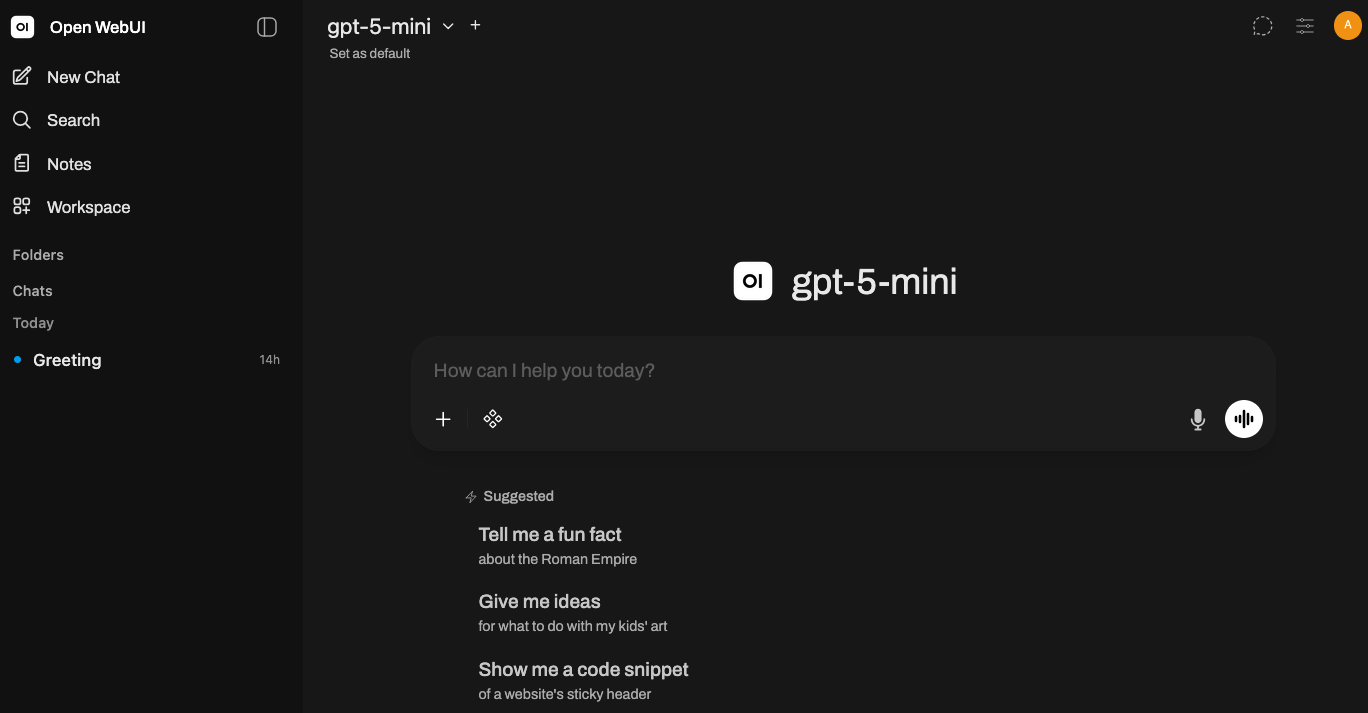
In this view, the following options can be accessed:
- New Chat: Reloads the current window with a new chat on the right panel side
- Search: Searches for keywords in past conversations and also allows starting a new conversation or creating a new node
- Notes: Create markdown-structured files that serve as structural content for your conversations
- Workspace: Create customized models with a base model, prompts, tools, and knowledge bases
- Folders: Structure individual chats into topics by either clicking on a folder and starting a new chat or by dragging and dropping an existing chat into the folder
- Chats: A list of past interactions
- User Icon: Access additional settings specific to the user
Features related to the chat interface are explored in the next sections.
Basic Chat Features
Chatting is the core user interaction feature of Open WebUI. As it has become a de facto standard, chat bubbles from the user and model are displayed top-down, right- and left-aligned respectively. For the latest model answer, all interaction icons are shown, as well as a list of follow-up prompts.
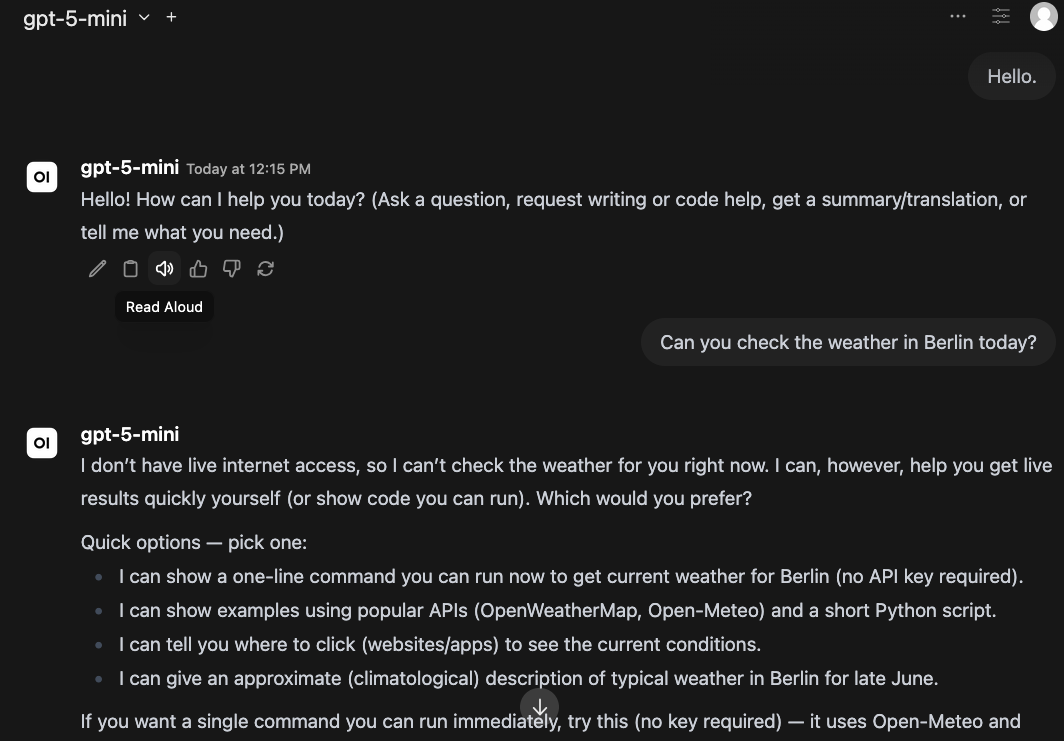
When hovering over a user chat bubble, the following functions are shown:
- Edit: Changes the content of the message but does not trigger a new answer generation from the model
- Copy: Puts the message content into the computer’s clipboard
- Delete: Deletes this message and the immediately following LLM answer
The model answer bubble offer these features:
- Edit: Opens an inline editor to modify the LLM answer and, when saved, persists this answer to the internal chat log
- Copy: Copies the complete message, including its formatting, to the computer’s memory
- Read aloud: Starts the browser’s text-to-speech integration to read the answer
- Good Response & Bad Response: Rate a particular LLM answer, see below for an explanation
- Continue Response: Sends the user message and the assistant message again, which can extend the original answer
- Regenerate: Recreates the selected answer by passing all previous conversation context to the LLM again once completed, the new answer is shown to the user and saved in the conversation history
An interesting feature is the option to rate the answer, called “Good Response” and “Bad Response”. When clicked, a dialog is opened at the top of the screen where a numerical rating and a short tag can be provided. This data is stored in your Open WebUI instance, and admin users can access analytics and evaluation dashboards that factor in these answers. Ratings are useful for a large user base and model availability, helping to determine which models are perceived as most helpful for their intended tasks. Here is a screenshot for rating an unhelpful answer.
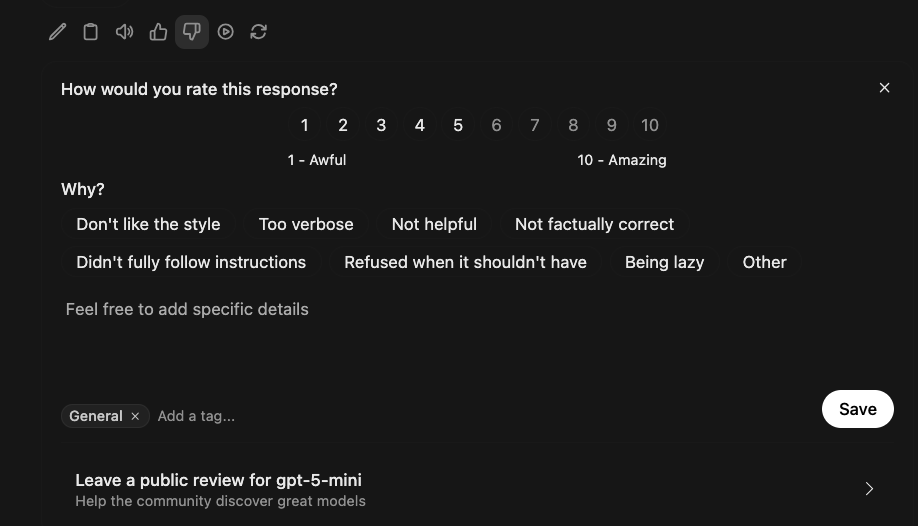
Additionally to storing locally, you can also add a public review of this model which is published on the Open WebUI model rating page, where you can provide a review for this specific model.
Notes
Notes are named files stored internally in your Open WebUI instance.
The notes menu shows a list of browsable and searchable notes, and you can add a new note or open an existing one.
The note editor provides standard text formatting including headings, lists, tasks, bold and italic fonts, and code blocks. Note content can be recorded from an audio message, and a model can be invoked to edit the content directly. The complete note can also be exported to other formats and even a link can be generated. Here is a screenshot.
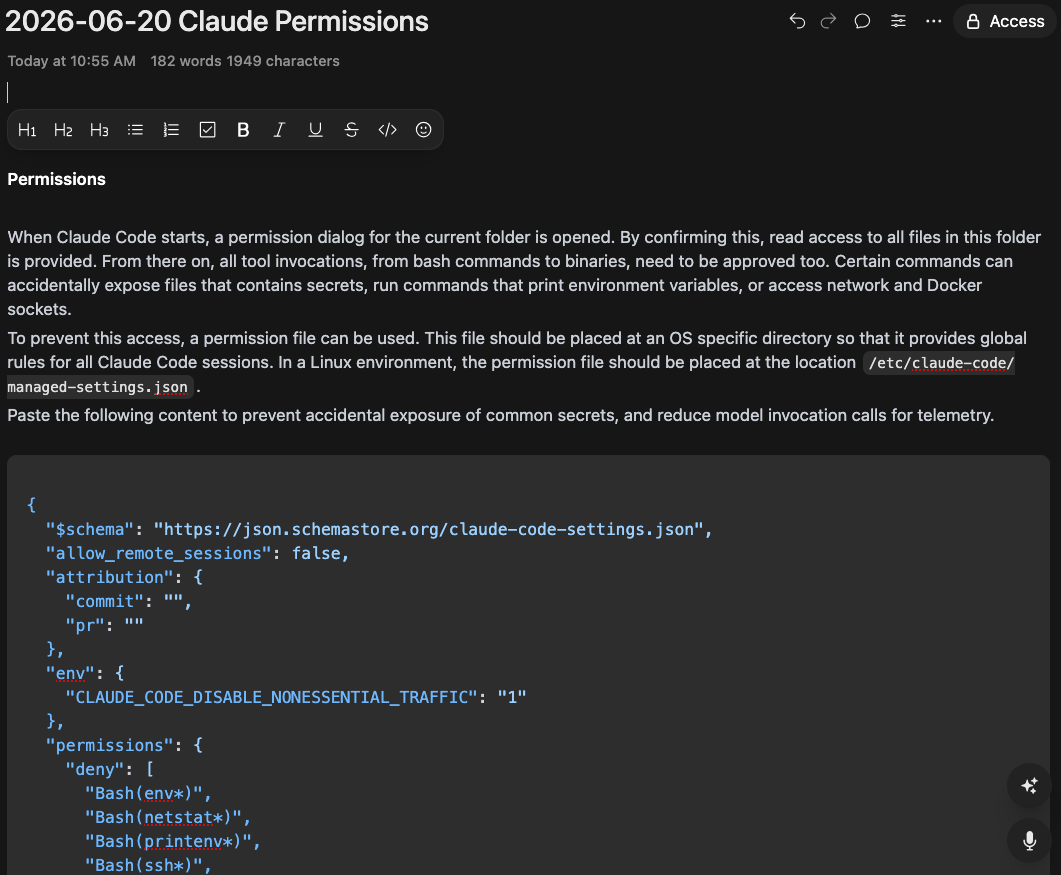
Notes can be used in chats in three different ways: a) directly in the note editor, you can start a chat with the note, b) in a chat by adding the note, c) when an advanced feature called terminal - a separate runtime in which code can be executed - is available, tool calls like search_notes or write_note can access notes dynamically.
Workspace Knowledge
Workspaces are a powerful feature that governs support for agentic usage. In the context of this article, only knowledge bases as context to chats are explored.
Follow these steps:
- In the main GUI click on
Workspace - In the horizontal menu area click on Knowledge and then on the button
+ New Knowledge - Fill in the following form then click on
Create Knowledge
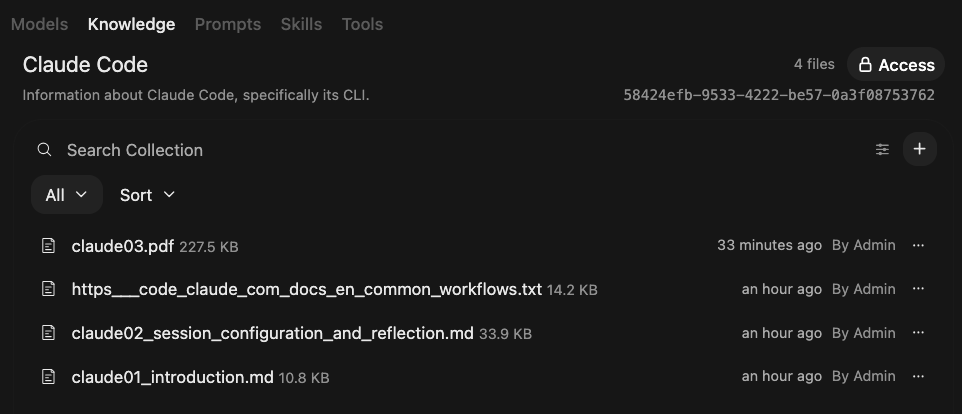
This results in a new screen showing a list of sources. With the + symbol, the knowledge base can be edited.
New original resources can be added with these options:
- Upload files: Upload files from your computer supporting text documents PDF DOC and CSV files but not images
- Upload directory: Select a local directory which triggers individual file uploads for all of its contained and supported files
- Add webpage: Process the provided HTTP resource extract its text content and store it note be sure to add an address for which no HTTP redirect occurs or otherwise the redirect information will be stored instead
- Add text content: This option opens an editor field into which you can paste any text information
The structure and content of the knowledge base can be altered as follows:
- New directory: Create a logical node to help structure documents
- Sync directory: Rescans an uploaded directory which removes any files from the knowledge base that are no longer present and adds all new or modified sources
- Reset: Completely deletes all stored content from the knowledge base
When documents are added to the knowledge base, the same process is triggered: text is extracted from the sources, split into content chunks, processed by an embedding model, and stored in an internal database.
Here is a screenshot of a knowledge base that includes my blog articles about Claude Code.
Providing Chat Context
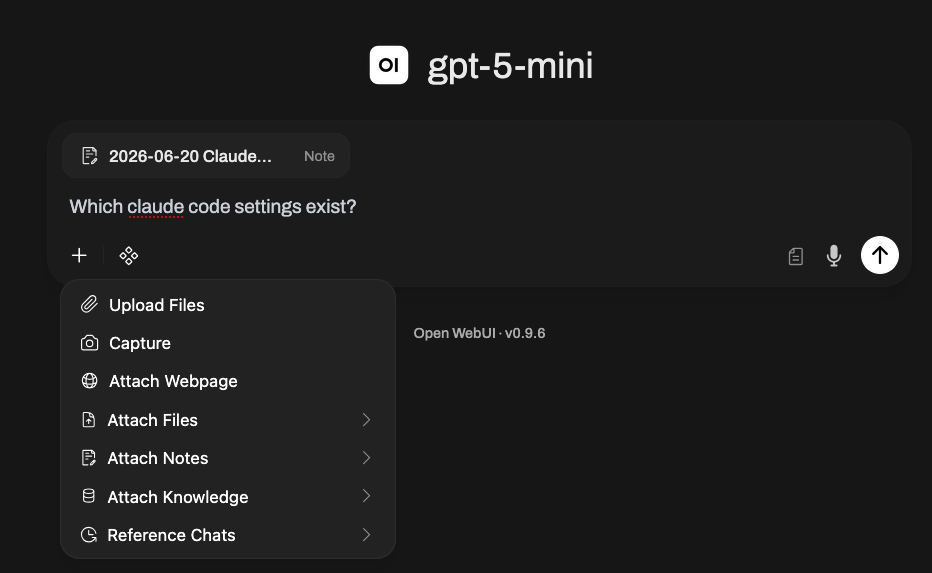
Open WebUI offers several options to provide context to your chat interactions.
Here is a screenshot where a note is already attached and additional sources can be added.
Original Documents
New information is injected into the conversation as follows:
- Upload files: Supported documents are parsed and their full content attached to the next message
- Capture: Opens the browser’s function to make a screenshot of specific windows or the entire screen
- Attach Webpage: Provide an HTTP link as a document source from which plain text information will be obtained and added to the message sent to the LLM endpoint
Two aspects should be noted:
- Automatic embedding: Open WebUI automatically detects the data format determines token splitting and embedding for text processes and stores these files This results in typical log messages as shown
open-webui  | {"ts": "2026-06-21T08:16:49.769+00:00", "level": "info", "msg": "192.168.65.1:45505 - \"POST /api/v1/files/?process=true HTTP/1.1\" 200", "caller": "uvicorn.protocols.http.httptools_impl:send:483"}
open-webui  | {"ts": "2026-06-21T08:16:51.487+00:00", "level": "info", "msg": "192.168.65.1:45505 - \"GET /api/v1/files/db47a1a8-3f19-4a5c-afcd-1cdb056306c1/process/status?stream=true HTTP/1.1\" 200", "caller": "uvicorn.protocols.http.httptools_impl:send:483"}
open-webui  | {"ts": "2026-06-21T08:16:51.518+00:00", "level": "info", "msg": "Using markdown header text splitter", "caller": "open_webui.routers.retrieval:save_docs_to_vector_db:1412"}
open-webui  | {"ts": "2026-06-21T08:16:51.521+00:00", "level": "info", "msg": "generating embeddings for file-db47a1a8-3f19-4a5c-afcd-1cdb056306c1", "caller": "open_webui.routers.retrieval:save_docs_to_vector_db:1490"}
Batches: 100%|██████████| 16/16 [00:02<00:00,  7.88it/s]
open-webui  | {"ts": "2026-06-21T08:16:53.569+00:00", "level": "info", "msg": "embeddings generated 16 for 16 items", "caller": "open_webui.routers.retrieval:save_docs_to_vector_db:1536"}
open-webui  | {"ts": "2026-06-21T08:16:53.570+00:00", "level": "info", "msg": "adding to collection file-db47a1a8-3f19-4a5c-afcd-1cdb056306c1", "caller": "open_webui.routers.retrieval:save_docs_to_vector_db:1548"}
open-webui  | {"ts": "2026-06-21T08:16:53.840+00:00", "level": "info", "msg": "added 16 items to collection file-db47a1a8-3f19-4a5c-afcd-1cdb056306c1", "caller": "open_webui.routers.retrieval:save_docs_to_vector_db:1554"}
open-webui  | {"ts": "2026-06-21T08:16:53.840+00:00", "level": "info", "msg": "added 1 items to collection file-db47a1a8-3f19-4a5c-afcd-1cdb056306c1", "caller": "open_webui.routers.retrieval:process_file:1730"}
- Session specificity: Documents are used for one turn in the chat conversation only meaning one message to and from the LLM Later user messages cannot implicitly reference an already added document from earlier messages However Open WebUI itself can query uploaded documents and extract relevant content Here is an example log message where I uploaded a blog article and asked about its content
open-webui | {"ts": "2026-06-21T08:34:27.873+00:00", "level": "info", "msg": "query_doc:result [['1c2776cd-b009-4d43-b20e-7f400b31269d', '08ea65ce-4c62-42f0-a897-6d2cbc0e2bd1', 'ae5f230c-ad8b-41a2-8d43-eaeedd75db99']] [[{'source': 'claude01_introduction.md', 'start_index': 2434, 'hash': '3e1955b782967e3d3ba5eed557e3c6a1de1b7c930b8267bd8ad76c122d5834c6', 'file_id': 'db47a1a8-3f19-4a5c-afcd-1cdb056306c1', 'embedding_config': \"{'engine': '', 'model': 'sentence-transformers/all-MiniLM-L6-v2'}\", 'created_by': 'b5b63a0d-ab5c-463e-ac3f-5ceacb6f3f94', 'name': 'claude01_introduction.md'}, {'embedding_config': \"{'engine': '', 'model': 'sentence-transformers/all-MiniLM-L6-v2'}\", 'created_by': 'b5b63a0d-ab5c-463e-ac3f-5ceacb6f3f94', 'source': 'claude01_introduction.md', 'start_index': 1753, 'name': 'claude01_introduction.md', 'file_id': 'db47a1a8-3f19-4a5c-afcd-1cdb056306c1', 'hash': '3e1955b782967e3d3ba5eed557e3c6a1de1b7c930b8267bd8ad76c122d5834c6'}, {'hash': '3e1955b782967e3d3ba5eed557e3c6a1de1b7c930b8267bd8ad76c122d5834c6', 'file_id': 'db47a1a8-3f19-4a5c-afcd-1cdb056306c1', 'embedding_config': \"{'engine': '', 'model': 'sentence-transformers/all-MiniLM-L6-v2'}\", 'start_index': 721, 'created_by': 'b5b63a0d-ab5c-463e-ac3f-5ceacb6f3f94', 'source': 'claude01_introduction.md', 'name': 'claude01_introduction.md'}]]", "caller": "open_webui.retrieval.utils:query_doc:285"}
Stored Documents and Knowledge Base
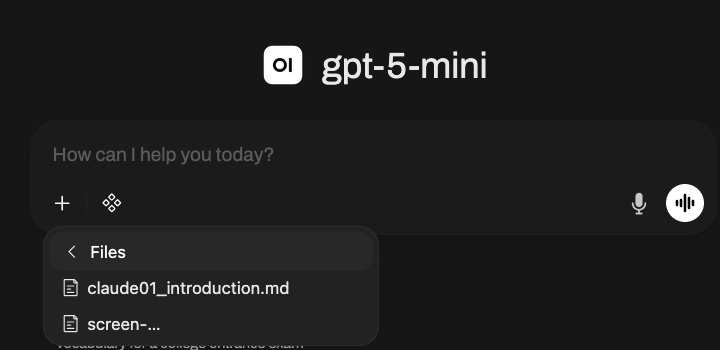
When adding existing information, several types of documents can be used:
- Attach Files: When a user uploads any file, it will be stored in a user specific file instance and therefore can be attached again in any following chat
- Attach Notes: Choose from any created note that is added as message context
- Attach Knowledge: Attach the complete knowledge database from a workspace
- Reference Chats: Add a complete conversation as context It includes all user messages system messages and any other added context
Conclusion
Open WebUI is one of the first tools that offered a chat interface to LLMs. This article explored its core features. You learned about, a) the start page, b) the main chat features for user and system messages, including editing, reading, regenerating and rating answers, c) how to create individual note files or d) complete document collections called knowledge bases, which can include different document types or web pages, and e) providing chat context with original documents and already uploaded document notes or knowledge bases.