Claude Code is an agentic tool for code generation. It helps developers to implement new features, analyze and solve bugs, and refactoring of complex code bases. Inside a Claude session, several slash commands are offered. Knowing their functions, and the context in which they are applicable, is essential for using the tool in its full potential.
In an ongoing blog series, all CLI commands are explored systematically. The focus of this article are commands for session and context management - essential for staying focused in long coding session.
The technical context of this article is claude_code v2.1.91, published on 2026-04-02. Examples and most CLI commands should work with newer versions too.
While I’m fascinated by the capabilities of artificial intelligence tools and applications, crafting blog articles remains my personal skill. Every character, number, and symbol in this article was typed manually, with the exception of verbose copies from log messages and screenshots.
Claude Code CLI: Slash Command Overview
Once a Claude Code session is started, more than 40 built-in slash-commands are available. They can be grouped into different categories that reflect the session lifecycle of its invocation, augmented by universal commands. Here is my proposed structure:
-
✅ Session Configuration
/add-dir: Add an additional working directory to the current session/rename: Provide a meaningful name to the conversation, which reflects the variable name of the conversation file/model: Determine the LLM model to be used/effort: Configures the effort level of the model, adjusting its internal reasoning behavior/login: Log in to the Anthropic subscription or Console/logout: Log out of an Anthropic account
-
✅ Session Reflection
/cost: Shows the current session cost/usage: Shows token consumption in the context of a subscription plan/status: Shows essential CLI, model, and account information/stats: Shows usage statistics and activity overview/config: General purpose configuration/update-config: Customizations of Claude Code internals/export: Create a compact conversation summary/insights: Generates a detailed report with meta information about the current session
-
🌀 Session Management
/batch: Execute a plan file as a parallel running sub-session/btw: Process an additional instruction during a long-running main task/loop: Run a specific prompt periodically/tasks: List all background tasks/fork: Define a staging point in the conversation history from which different branches can be invoked/rewind: Roll back the conversation and optionally code base to an earlier state/exit: Stop the terminal/resume: Continue a session
-
🌀 Context Management
/clear: Reset the conversation history/compact: Define a new conversation history entry, limiting the context that is sent to the LLM provider/context: Visualize current context usage as a colored grid/memory: Edit Claude memory files
-
Conversation Ops
/rename: Provide a meaningful name to the conversation/init: Read the current project and generate a CLAUDE.md file/plan: Toggle between editing and plan mode/simplify: Review the changed code for efficiency/review: Review a merge request and optionally check comments from an origin repo/security-review: Invoke a special agent that checks the source code for security issues/diff: View and commit staged file changes/copy: Copy the last answer to the clipboard/export: Create a compact conversation summary
-
Terminal Configuration
/theme: Configure the color theme/color: Configure prompt bar color/terminal-setup: Configure key bindings/vim: Enable or disable VIM editor support when editing files via the CLI/statusline: Set up a custom status line for the terminal
-
Diagnostics & User Support
/release-notes: Show the Claude Code release notes/doctor: Check configuration status/debug: Enable verbose debugging output and check for known issues/feedback: Write feedback about your Claude Code experience/help: Show general information about available slash commands/powerup: Explore Claude Code feature with small lessons/stickers: Order Claude Code stickers/buddy: Hatch a Tamagotchi-like coding companion
-
Permissions
/permissions: Fine-grained allow & deny tool permission rules/sandbox: Configure settings to secure Claude terminal access and program execution rights
-
Extensions
/hooks: View hook configurations for tool events/skills: View installed skills/agents: Create and manage agents/mcp: Set up and manage MCP server definitions/chrome: Start a local Chromium browser for browser interaction/plugin: Browse and configure CLI extension/reload-plugins: Reload all configured plugins
-
Integrations
/ide: Show IDE integrations for Claude, for example in Visual Studio Code/install-github-app: Configure GitHub actions that interact with Claude/install-slack-app: Configure Slack integration/mobile: Show a QR code to download the iOS or Android app/claude-api: Build native apps that integrate with Anthropic SDK
Groups and commands marked with ✅ were covered in an earlier article, while those with 🌀 are the focus of this article.
Session Management
/batch
In a conventional session with Claude Code, commands are executed linearly. A user prompt gets embedded into a system prompt, the LLM provider process the prompts in thinking mode, suggest tool calls that are executed and looped back to the model, until the model declares a task completed.
To accelerate the execution of complex tasks, the batch command takes a stored plan, analyzes it, and depatches several sub-agents to work on it.
Here is an example of invoking that command to refactor my skill-converter app from NodeJS to Python.
/batch implement the universal-skill-converter plan

● I'll implement the universal-skill-converter refactoring to Python. Let me start by
  entering plan mode to create a detailed batch execution plan.

● Entered plan mode
  Claude is now exploring and designing an implementation approach.

∴ Thinking…

  The user is now asking me to implement the universal-skill-converter plan. They've given me
   the /batch command which means I need to:

  1. Enter plan mode
  2. Research the scope (I've already done this in the previous conversation)
  3. Decompose into independent units
  4. Determine e2e test recipe
  5. Write the plan
  6. Exit plan mode
  7. Spawn workers

  I already have a comprehensive understanding of the codebase from the previous exploration.
   Let me now create a proper plan for the batch execution.

  From the previous exploration, I know:
  - The project is a TypeScript/Node.js CLI tool that converts skills from skill.sh to
  clawhub format
  - It has 14 TypeScript modules in src/lib/
  - It has CLI commands in src/commands/
  - It has types in src/types/
  - It has UI in src/ui/
  - There are 94 tests

  For the batch approach, I need to:
  1. Create work units that are independently implementable
  2. Each unit should be in an isolated worktree
  3. Each unit should be mergeable on its own
  4. Each unit should be roughly uniform in size
/btw
Instructions entered in the CLI start a long-running process. The process can be interrupted by pressing ESC, or aborted with ESC-ESC. If you want to let Claude on a parallel task, the “by-the-way” command can be executed.
Here is an example for this invocation during the refactoring to Python main task
/btw list background processes

    I don't have access to any tools to list background processes. As a separate lightweight
    agent without file system or command execution capabilities, I cannot run commands or
    view the system's process list.

    You would need to use your terminal's commands directly, such as:
    - ps aux (Linux/macOS)
    - tasklist (Windows)
    - pgrep (to find specific processes)
/loop
This command allows you to run a specififc prompt or other command periodically. This can be helpfull in long running sessions, when you want to e.g. update documents like the CLAUDE.md file, or run linter or test commands on code bases.
Here is an example.
/loop 1m "run /init"

● CronCreate(*/1 * * * *: run /init)
  ⎿  Scheduled d6ad1c81 (Every minute)

● Skill(init)
  ⎿  Successfully loaded skill

  Searched for 3 patterns, read 1 file (ctrl+o to expand)

● The CLAUDE.md already exists at /opt/claude/universal-skill-converter/CLAUDE.md and appears comprehensive and
  accurate. It includes:

  - Commands: dev, build, test, coverage, typecheck, lint, format
/tasks
During investigating complex code bases, or when working with the /batch command, several parallel running tasks are spawned, including tool calls and agent invocations. They can be observed with the same-named command.
Here is an example during the above refactoring step.
● Let me explore the codebase more thoroughly to create an effective batch execution plan.

● Read(/opt/claude/universal-skill-converter/package.json)
  ⎿  Read 50 lines

● Read(/opt/claude/universal-skill-converter/tsconfig.json)
  ⎿  Read 21 lines

● Search(pattern: "src/**/*.ts")
  ⎿  Found 18 files
     src/lib/meta.ts
     src/lib/path.ts
     src/lib/slug.ts
     src/lib/errors.ts
     src/lib/fs.ts
     src/lib/migrate.ts
     src/lib/yaml.ts
     src/commands/convert.ts
     src/index.ts
     src/lib/converter.ts
     src/lib/marker.ts
     src/lib/remote.ts
     src/lib/transform.ts
     src/lib/validator.ts
     src/types/index.ts
     src/ui/output.ts
     src/ui/prompts.ts
     src/ui/verbose.ts

● Read(/opt/claude/universal-skill-converter/src/commands/convert.ts)
  ⎿  Read 227 lines

● Read(/opt/claude/universal-skill-converter/src/lib/converter.ts)
  ⎿  Read 102 lines

● Read(/opt/claude/universal-skill-converter/src/types/index.ts)
  ⎿  Read 96 lines

● Read(/opt/claude/universal-skill-converter/src/ui/output.ts)
  ⎿  Read 64 lines

● Read(/opt/claude/universal-skill-converter/vitest.config.ts)
  ⎿  Read 15 lines

● Read(/opt/claude/universal-skill-converter/README.md)
  ⎿  Read 314 lines

● Read(/opt/claude/universal-skill-converter/src/lib/remote.ts)
  ⎿  Read 334 lines

● Read(/opt/claude/universal-skill-converter/src/lib/marker.ts)
  ⎿  Read 61 lines

● Read(/opt/claude/universal-skill-converter/src/lib/metadata.ts
/branch
Note: This command’s name was /fork up until Claude Code v2.1.77.
Normally, your prompts and the tools responses form a linear structure. If you are at a decisive point, e.g. during refactoring, and want to investigate different outcomes, you can create a fork from this conversation.
Executing this command effectively copies your current session to a new one, and prints how to resume the existing one.
/fork
 Branched conversation. You are now in the branch.
     To resume the original: claude -r d907194e-ba58-4640-9e32-49727cc351b5
/rewind
Conversations are a linear sequence of user prompts, LLM invocation, and printed answers. Every interaction point, and the state of the current working directory, is stored as an internal snapshot. If, during a longer session, the code base you are working on evolved to an undesired state, you can rollback to any of those snapshots.
The /rewind command first shows you all of these snapshots …
 Rewind

 Restore the code and/or conversation to the point before…

   Refactor this app to python. Write the plan file "refactor-to-python.md"
   No code changes

   /model
   No code changes

   Refactor this app to python. Write the plan file "refactor-to-python.md"
   serene-waddling-newt.md +553 -2

 ❯ /batch implement the universal-skill-converter plan
   No code changes
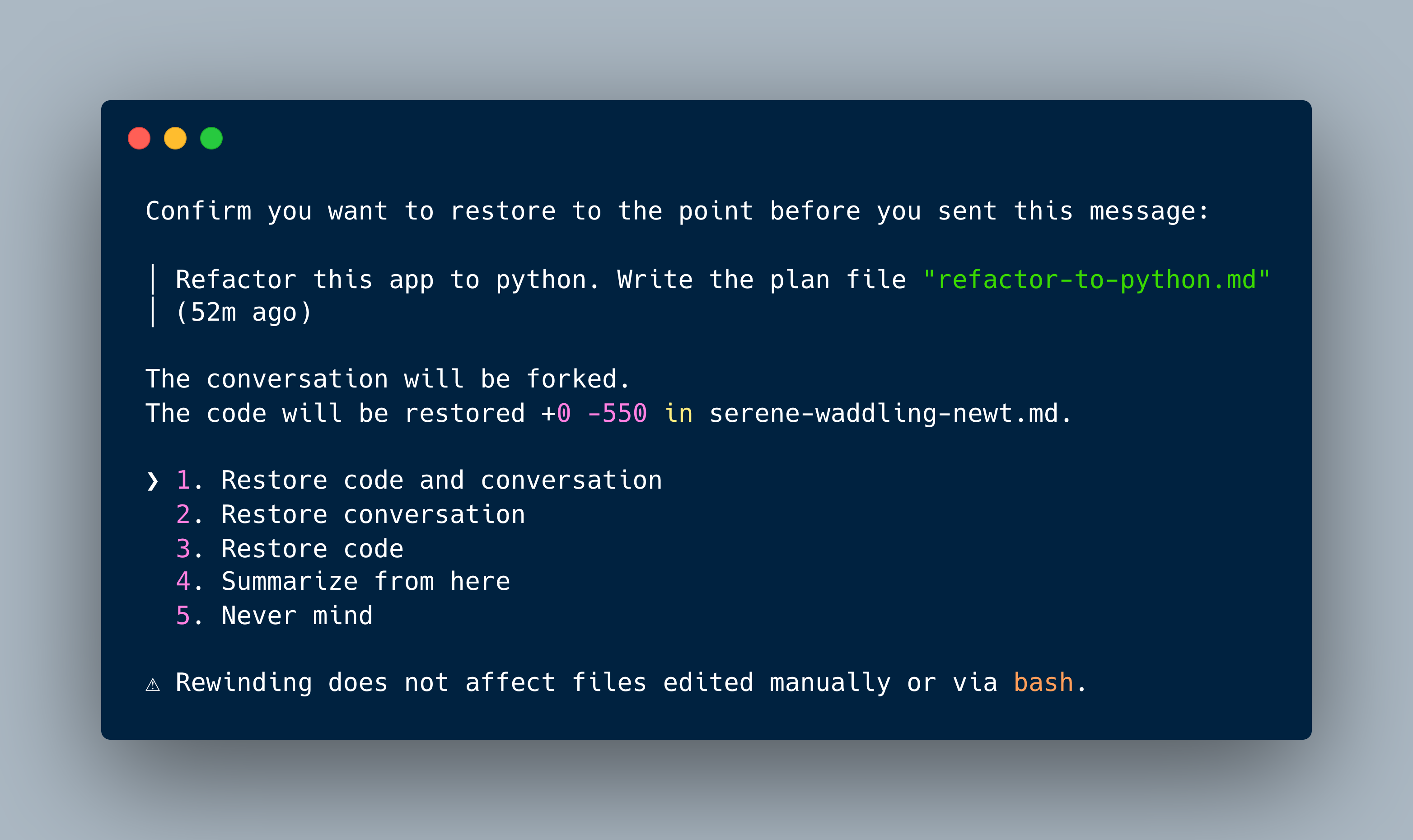
… and the allows cursor navigation to select from where to rebegin. When you make a selection, you are asked what to keep.
 Confirm you want to restore to the point before you sent this message:

 │ Refactor this app to python. Write the plan file "refactor-to-python.md"
 │ (52m ago)

 The conversation will be forked.
 The code will be restored +0 -550 in serene-waddling-newt.md.

 ❯ 1. Restore code and conversation
   2. Restore conversation
   3. Restore code
   4. Summarize from here
   5. Never mind

 ⚠ Rewinding does not affect files edited manually or via bash.
/exit
The current session can be immediately stopped with this command. The return message will either name the session ID, the session name if you provided one, or if you used the /branch command, its name.
For a named session:
Resume this session with:
claude --resume "refactor-to-python"
And for a branch:
❯ /exit
Resume this session with:
claude --resume "Refactor this app to python. Write the plan file \"refactor-to-python.md\" (Branch)"
/resume
An exited conversation can be resumed either via the CLI flag or when inside a session. Here is an example for the second option.
/resume refactor-to-python
Context Management
/context
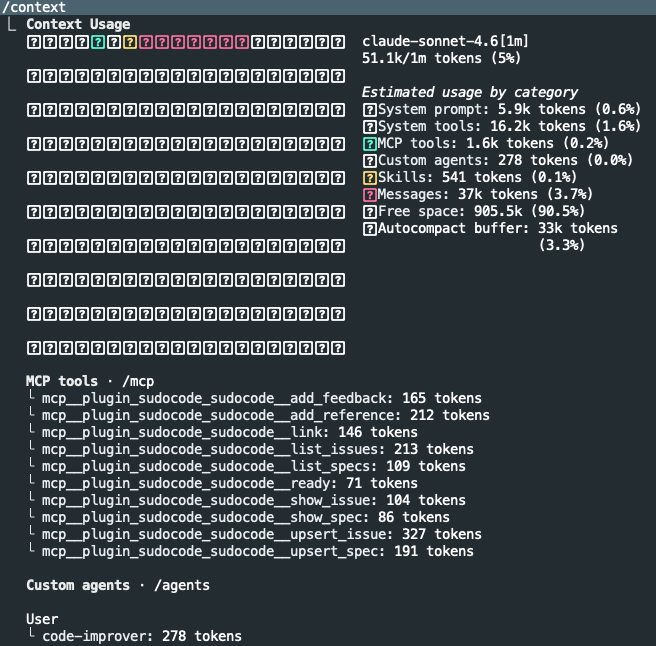
Context is the sum of the loaded CLAUDE.md files, memory files, prompts, mcp servers, skills, user and system messages. During long sessions, the context fills up, and this command visualizes the accumulated structure.
/compact
During very long sessions with Claude, answer quality might degrade, code quality drops, and more and more fixes are required to keep code running. This is an indicator that the overall context contains too many instructions, which confuse the model.
The /compact command refreshes the context. But what actually happens when this command is executed? The JSONL session file is amended with a new document. And this document summaries the most important user and system messages. And from then on, any new request that is send to the LLM provider starts with this summary document only, resulting in an alltogether fresh context.
❯ /compact
  ⎿  Compacted (ctrl+o to see full summary)
  ⎿  Read src/lib/remote.ts (334 lines)
  ⎿  Read src/lib/marker.ts (61 lines)
  ⎿  Read README.md (314 lines)
  ⎿  Read src/ui/output.ts (64 lines)
  ⎿  Plan file referenced (~/.claude/plans/fluttering-growing-lecun.md)
Observe the new document in the session history:
{
  "parentUuid": null,
  "logicalParentUuid": "b165d9aa-6aab-4597-9187-954b7f5c6666",
  "isSidechain": false,
  "type": "system",
  "subtype": "compact_boundary",
  "content": "Conversation compacted",
  "isMeta": false,
  "timestamp": "2026-04-09T15:58:03.769Z",
  "uuid": "a37533f8-0993-4750-964c-8ba724430fe8",
  "level": "info",
  "compactMetadata": {
    "trigger": "manual",
    "preTokens": 54247
  },
  "userType": "external",
  "entrypoint": "cli",
  "cwd": "/opt/claude/universal-skill-converter",
  "sessionId": "3a0213a0-5ef4-420c-8d11-1bda03f41a1a",
  "version": "2.1.91",
  "gitBranch": "feature/refactor-to-python",
  "slug": "fluttering-growing-lecun"
}
{
  "parentUuid": "a37533f8-0993-4750-964c-8ba724430fe8",
  "isSidechain": false,
  "type": "user",
  "message": {
    "role": "user",
      "content": "This session is being continued from a previous conversation that ran out of context. The summary below covers the earlier portion of the conversation.
  Summary:
  1. Primary Request and Intent:
     - Refactor the universal-skill-converter app from TypeScript to Python
     - Create plan file \"refactor-to-python.md\"
     - Later: Execute the plan using batch mode with parallel workers
     - Maintain all functionality (local and remote conversion, 10-step conversion process)
     - Preserve security features (safe YAML parsing, path validation)
     - Maintain testing coverage (>70% target)
     - Keep identical CLI interface and command names
  2. Key Technical Concepts:
     - TypeScript/Node.js to Python migration
     - CLI framework (Click instead of commander)
     - Data validation (Pydantic instead of Zod)
     - YAML parsing with safe_load equivalent
     - Terminal formatting (Rich instead of picocolors + @clack/prompts)
     - Git operations (GitPython)
     - File system operations (sync instead of async)
     - Layered architecture (CLI, Core, Models, UI layers)
     - Skill format conversion (skill.sh → clawhub)
     - GitHub repository fetching and caching
     - Test-driven development with pytest
  3. Files and Code Sections:
     - `/opt/claude/universal-skill-converter/package.json`
       - Contains project metadata and dependencies
       - Shows current tech stack: commander, js-yaml, zod, @clack/prompts
       - Scripts: dev, build, test, typecheck, lint, format

     - `/opt/claude/universal-skill-converter/tsconfig.json`
       - TypeScript configuration with strict mode enabled
       - ESNext target with bundler module resolution

     - `/opt/claude/universal-skill-converter/src/commands/convert.ts`
       - Main CLI command implementation (226 lines)
       - Handles remote/local source detection
       - Options: path, output, force, verbose, json, skill, ref, keep-temp
       - Command structure: `skill-convert convert <path-or-url>`

     - `/opt/claude/universal-skill-converter/src/lib/converter.ts`
       - Conversion orchestrator (101 lines)
       - 10-step conversion process: marker check, validation, file reading, directory creation, metadata generation, transformation, migration, license copy, scripts copy, marker creation

     - `/opt/claude/universal-skill-converter/src/types/index.ts`
       - Zod schemas for type safety
       - ConvertOptionsSchema, SkillShFrontmatterSchema, ClawhubFrontmatterSchema, MetaJsonSchema, ConversionMarkerSchema, ConversionResultSchema, ValidationResultSchema, ConversionContextSchema

     - `/opt/claude/universal-skill-converter/src/lib/remote.ts`
       - GitHub repository handling (333 lines)
       - Functions: parseRemoteSource, isRemoteSource, validateGitInstalled, validateGitHubRepo, fetchGitHubRepo, fetchRemoteSkill, retryWithBackoff
       - Caching in ~/.skill-convert/cache/ for 24 hours

     - `/opt/claude/universal-skill-converter/src/lib/marker.ts`
       - Conversion tracking with .converted_from_skillsh marker file
       - Functions: readConversionMarker, writeConversionMarker, isAlreadyConverted, removeConversionMarker

     - `/home/node/.claude/plans/serene-waddling-newt.md`
       - Comprehensive Python refactoring plan
       - Detailed file structure mapping (14 TypeScript modules → Python equivalents)
       - Module-by-module implementation details
       - Testing strategy with pytest
       - Migration phases and timeline (~12 hours)
  4. Errors and fixes:
     - No technical errors encountered during conversation
     - User feedback: When I attempted to exit plan mode, user said \"No\" and indicated they didn't want the plan executed at that time
     - User later provided specific preferences: Click framework, identical interface, >70% coverage, sync I/O
  5. Problem Solving:
     - Analyzed existing TypeScript codebase architecture to understand conversion requirements
     - Designed Python equivalent tech stack (Click, Pydantic, Rich, GitPython)
     - Mapped TypeScript modules to Python equivalents
     - Created detailed implementation plan with work units for parallel execution
     - Established testing strategy with pytest and temporary directory isolation
  6. All user messages:
     - \"Refactor this app to python. Write the plan file 'refactor-to-python.md'\"
     - User answers to design questions: Click framework, identical interface, >70% coverage, sync I/O
     - \"No, don't execute the plan.\"
     - \"implement the universal-skill-converter plan\" (via /batch command)
  7. Pending Tasks:
     - Complete the batch execution plan with work unit decomposition
     - Determine e2e test recipe for verifying conversions
     - Exit plan mode and spawn parallel workers for implementation
     - Track progress of multiple workers implementing different modules
     - Create pull requests for each work unit
  8. Current Work:
     I was in the middle of creating a detailed batch execution plan after the user issued the \"/batch implement the universal-skill-converter plan\" command. I had:
     - Explored additional files (remote.ts, marker.ts, meta.ts)
     - Started analyzing the codebase for work unit decomposition
     - Was preparing to create a plan file with 15-30 independent, mergeable work units
     - Was designing the e2e test recipe for conversion verification
     - Had entered plan mode and was in the exploration phase
  9. Optional Next Step:
     Continue the batch execution planning by:
     1. Completing the work unit decomposition (creating 15-20 independent units covering project setup, core modules, models, UI layer, CLI layer, and testing)
     2. Designing the e2e test recipe (CLI verification commands, test skill conversion workflow)
     3. Writing the complete plan file to /home/node/.claude/plans/serene-waddling-newt.md
     4. Exiting plan mode to present the plan for approval

     Based on the user's explicit request: \"implement the universal-skill-converter plan\" via batch mode, the next step should focus on finalizing the detailed execution plan for parallel worker implementation.
  If you need specific details from before compaction (like exact code snippets, error messages, or content you generated), read the full transcript at: /home/node/.claude/projects/-opt-claude-universal-skill-converter/3a0213a0-5ef4-420c-8d11-1bda03f41a1a.jsonl"
  },
  "isVisibleInTranscriptOnly": true,
  "isCompactSummary": true,
  "uuid": "9eb02f5b-d4a9-4352-9f64-f1ba5975cecf",
  "timestamp": "2026-04-09T15:58:03.769Z",
  "userType": "external",
  "entrypoint": "cli",
  "cwd": "/opt/claude/universal-skill-converter",
  "sessionId": "3a0213a0-5ef4-420c-8d11-1bda03f41a1a",
  "version": "2.1.91",
  "gitBranch": "feature/refactor-to-python",
  "slug": "fluttering-growing-lecun"
}
From here, you cannot use the rewind command to progress further back, the compacted session is the new starting point.
/clear
During very long sessions with Claude, answer quality might degrade, code quality drops, and more and more fixes are required to keep code running. This is an indicator that the overall context contains too many instructions, which confuse the model.
When compaction does not help, you need to /clear the context completely.
Here is the command:
/clear
Internally, a new session ID is generated, and the JSONL file starts from scratch.
And here is the change to the session file.
cat ~/.claude/projects/-opt-claude-universal-skill-converter/e008d275-5119-45bf-b3ba-541e1845b369.jsonl

{
  "type": "file-history-snapshot",
  "messageId": "7fe3cfbe-a428-4709-a756-98db0d487968",
  "snapshot": {
    "messageId": "7fe3cfbe-a428-4709-a756-98db0d487968",
    "trackedFileBackups": {},
    "timestamp": "2026-04-09T16:06:47.905Z"
  },
  "isSnapshotUpdate": false
}
{
  "parentUuid": null,
  "isSidechain": false,
  "type": "user",
  "message": {
    "role": "user",
    "content": "<local-command-caveat>Caveat: The messages below were generated by the user while running local commands. DO NOT respond to these messages or otherwise consider them in your response unless the user explicitly asks you to.</local-command-caveat>"
  },
  "isMeta": true,
  "uuid": "1c37f14c-f73e-4c2d-bb38-dd8da3ee99d7",
  "timestamp": "2026-04-09T16:06:47.904Z",
  "userType": "external",
  "entrypoint": "cli",
  "cwd": "/opt/claude/universal-skill-converter",
  "sessionId": "e008d275-5119-45bf-b3ba-541e1845b369",
  "version": "2.1.91",
  "gitBranch": "feature/refactor-to-python"
}
{
  "parentUuid": "1c37f14c-f73e-4c2d-bb38-dd8da3ee99d7",
  "isSidechain": false,
  "type": "user",
  "message": {
    "role": "user",
    "content": "<command-name>/clear</command-name>\n            <command-message>clear</command-message>\n            <command-args></command-args>"
  },
  "uuid": "7fe3cfbe-a428-4709-a756-98db0d487968",
  "timestamp": "2026-04-09T16:06:47.901Z",
  "userType": "external",
  "entrypoint": "cli",
  "cwd": "/opt/claude/universal-skill-converter",
  "sessionId": "e008d275-5119-45bf-b3ba-541e1845b369",
  "version": "2.1.91",
  "gitBranch": "feature/refactor-to-python"
}
/memory
Memory is an additional layer in Claude Codes context. It is intended to capture project-specific intricacies for improving work efficiency, for example corrections to errors, detailed build and test commands, or observations about high-level architecture. Claude keeps these memories automatically, and with this command, you gain access to its settings.
When executed, a navigable terminal interface is rendered:
/memory

──────────
Memory

    Auto-memory: on
    Auto-dream: off · never

  ❯ 1. User memory                      Saved in ~/.claude/CLAUDE.md
    2. Project memory                   Checked in at ./CLAUDE.md
    3. Open auto-memory folder
    4. Open code-improver agent memory  user scope

  Learn more: https://code.claude.com/docs/en/memory
Following options are available:
- The points “User memory” and “Project memory” lead directly to the printed files.
- When the auto-memory option is enabled, and memory files generated at
~/-claude/projects/<id>/memory/, the option “Open auto-memory folder” opens this directory. - The code-improver agent is a subagent invoked for refactoring code. Its user-scope file location is
~/.claude/agent‑memory/code‑improver/, and when invoking the fourth option, an editor for its memory file is opened.
Finally, the auto-dream feature was just added in claude code v2.1.92. It is a mechanism to reconcile fragmented memory files from user and project code, detects duplicate or contradicting entries, and cleans them up, the option toggle enables or disables this feature.
Conclusion
Claude Code is an agentic tool for working on complex code bases. It offers more than 40 commands. Understanding their functions, and the scope in which they should be applied, is essential for effective work. In this blog article, commands from the session and context management groups were explored. For session management, you learned a) to run a sub-agent that works on a plan file, b) ask an additional question during a session that does not disrupt the main task, c) list all background tasks, d) create subtrees in long conversation histories, e) rewind to earlier stages, f) stop the current session immediately and g) resuming where you left off. And for context management, you learned a) view a graphical representation of the current context, b) compact the context, reducing what is being send to the LLM provider, c) clear the current context, and d) viewing and editing memory files, from project to user and code-improver agent scope, keeping important learnings as a permanent context.